---
title: Download a Twitch VOD
description: "Download twitch vod: paste a twitch.tv/videos link, pick quality, and save the past broadcast to a folder on this computer."
url: https://keepcopy.app/blog/download-twitch-vod
updated: 2026-08-14T00:00:00.000Z
---
Twitch will delete a past broadcast after a window. The official download button lives on the **channel owner’s** dashboard. Everyone else is left with a converter you found in search, or a copied command.
**KeepCopy** is the local [desktop video downloader](/) for that gap. To **download a Twitch VOD**, paste a `twitch.tv/videos/…` link, pick quality in plain language, and save the video to a folder on this computer. Official **yt-dlp** plus **ffmpeg** run here. The pasted URL never goes through our servers.
On this page
- [Owner dashboard vs a pasted VOD](#owner-dashboard-vs-a-pasted-vod)
- [VOD URL vs clip URL](#vod-url-vs-clip-url)
- [How to download a Twitch VOD](#how-to-download-a-twitch-vod)
- [Subscriber-only VODs and cookies](#subscriber-only-vods-and-cookies)
- [What this will not do](#what-this-will-not-do)
- [Where the file lands](#where-the-file-lands)
- [Micro-FAQ](#micro-faq)
Owner dashboard vs a pasted VOD
**Twitch’s built-in download is for the person who owns the channel.** It sits in their creator tools. If that is you, use it. You already have the original.
If you are watching someone else’s past broadcast, that button is not there. A **cloud converter** is the usual next search. A **browser extension** is the other. Both put the link somewhere you cannot see.
KeepCopy stays on this computer. You paste the VOD URL. The app inspects it locally. You pick a quality. The file lands in a folder you choose. That is the **download twitch vod** job this page owns.
The generic “no converter in the middle” write-up is [Save web video without a web converter](/blog/save-web-video-without-web-converter). Come back here when the link is a Twitch VOD.
VOD URL vs clip URL
**Paste the page you watched.** A VOD and a clip are different URLs.
- A **VOD** looks like `twitch.tv/videos/` plus a number. That is a past broadcast.
- A **clip** has its own clip page. It is a short cut of a stream, not the whole VOD. That job is [Download a Twitch clip](/blog/download-twitch-clip).
Do not paste the channel homepage or a live directory. Those are not a video. The app will say so.
A live page is not this job. This page is a past broadcast or a clip you can already open. If you pasted a list, inspect it and **select the entries** you want — [Download selected videos from a playlist](/blog/download-selected-videos-from-playlist).
How to download a Twitch VOD
**Paste the VOD, pick a quality, save to a folder.** You never type a format code.
### Step 1: Open KeepCopy
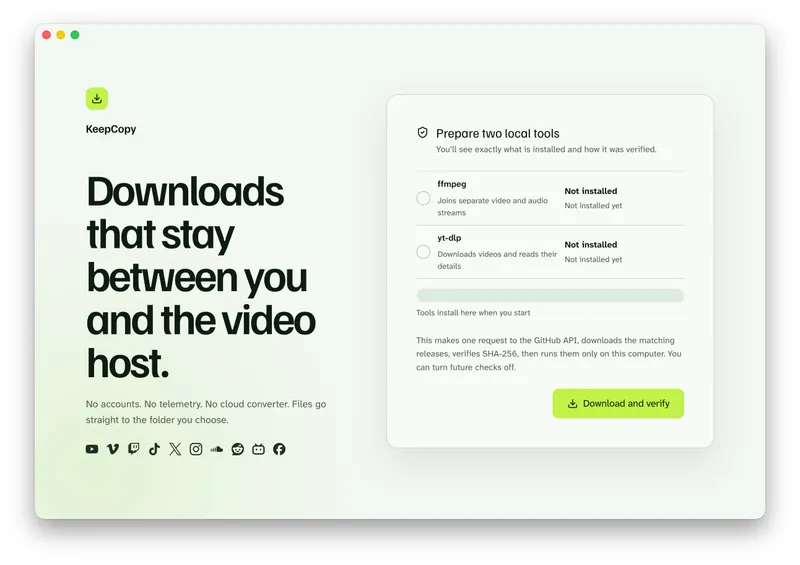
Launch KeepCopy on macOS, Windows, or Linux. First run installs and verifies the official **yt-dlp** release and **ffmpeg** on this computer. You do not hunt a **package manager**.
### Step 2: Paste the VOD or clip URL
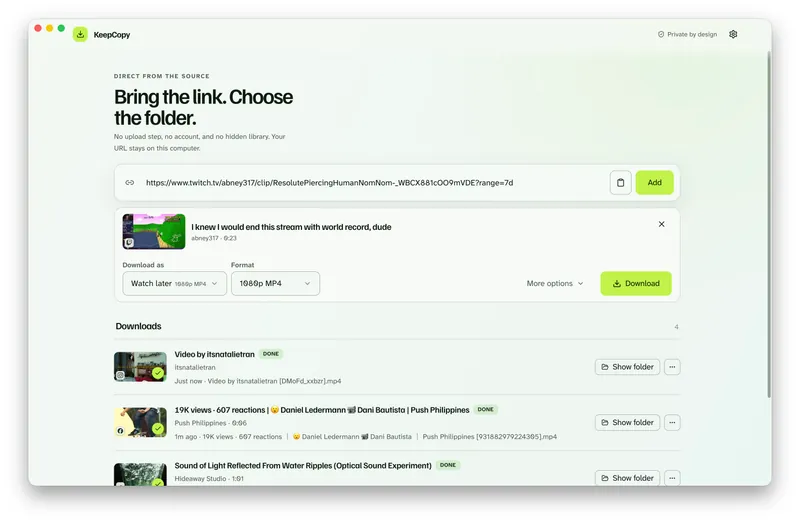
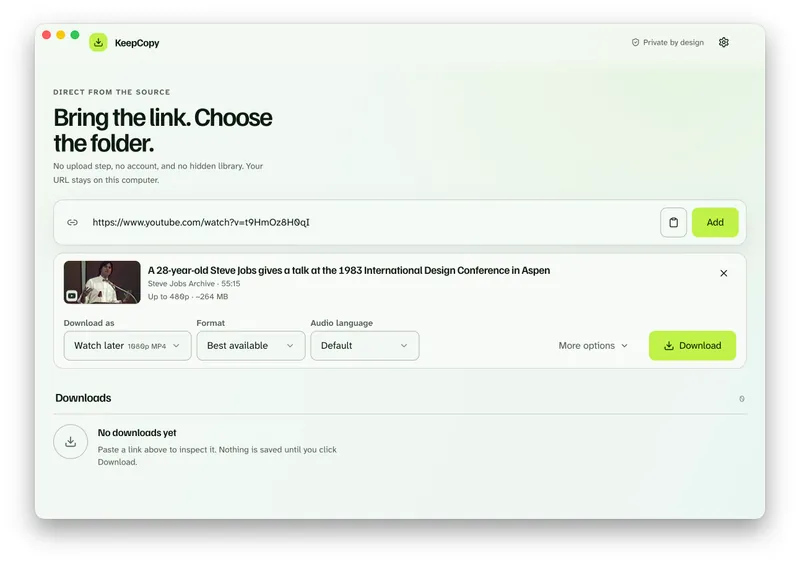
Copy the address from the broadcast or clip you opened. Drop it into KeepCopy. The app inspects the link on this computer before anything is saved.
### Step 3: Pick quality in plain language
Choose **720p MP4**, **1080p MP4**, **4K MP4**, or **best available** when the source has them. Watch later is a shortcut for those everyday presets — [Download 1080p video without command line](/blog/download-1080p-without-command-line).
Long VODs are still one job in the queue. Pick the quality you will actually watch. You do not pass a format code.
### Step 4: Save it to a folder
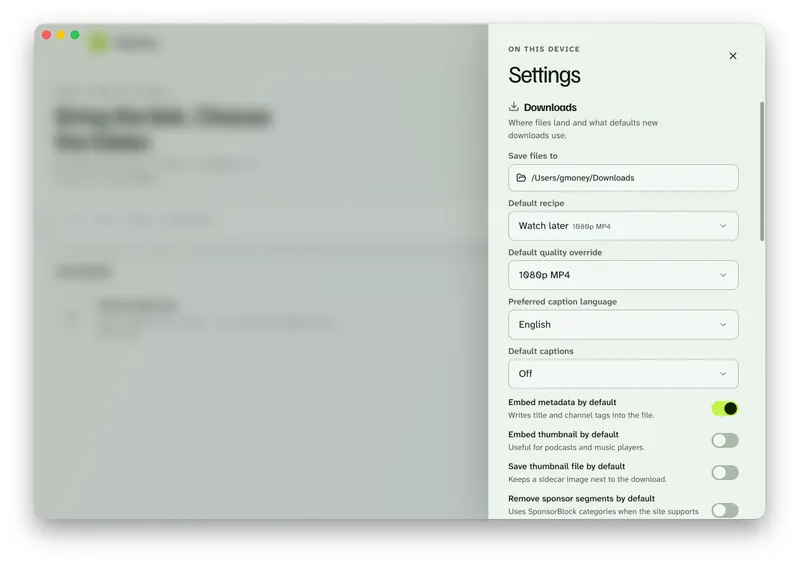
In Settings, set **Save files to** to a folder on this computer. The queue shows progress, cancel, and retry. When it finishes, **Show folder** reveals the file.
Save the broadcast. [Paste a Twitch VOD in KeepCopy.](/#download)
Subscriber-only VODs and cookies
**A sub-only VOD can play in your signed-in browser and still challenge a download.** The public request and your session do not look the same to Twitch.
If the title is **sign in required** or the video is private, open **Site access**. Choose cookies from a listed browser — Chrome, Chromium, Edge, Firefox, or Safari — or point the app at a `cookies.txt` file. Then retry.
Cookies stay on this computer. They go only to **yt-dlp** for that challenged download. They reuse a session you already have. They do not grant a subscription or bypass Twitch’s rules.
The full cookie path is [Video download says sign in required](/blog/video-download-sign-in-required). Public VODs do not need it. Start with **Don’t use cookies**.
What this will not do
**KeepCopy cannot restore a VOD Twitch already deleted.** If the broadcast is gone, inspect has nothing to load. Download it while the page still plays.
**It will not unmute audio Twitch already muted.** If the host silenced stretches of the VOD, the saved file keeps those mutes. That is the source, not a missing join.
This is not a chat export, a clip editor, or a trim tool. Those controls are not in the shipped UI. It is not a website that fetches the video for you.
If the picture is mute for a different reason — split streams, not a host mute — see [Downloaded MP4 no audio](/blog/downloaded-mp4-no-audio). A Reddit post with that split is [Download Reddit video with sound](/blog/download-reddit-video-with-sound).
Where the file lands
**You choose the folder. The app writes there.** There is no KeepCopy account page and no temporary cloud workspace.
The queue is the working surface: progress, cancel, retry, reveal in folder, remove. A long VOD is still one job you started.
The download stays **local-first**. Your computer talks to Twitch. The desktop app sends **no telemetry** and no crash reports. For the path of a pasted link, read [What stays on your computer](/blog/what-stays-on-your-computer).
If the queue failed, retry or repair the tools in Settings — [Video download keeps failing](/blog/video-download-keeps-failing). More [workflow](/blog/category/workflow) notes live with this one. The paste-pick-save walkthrough is [yt-dlp without the terminal](/blog/yt-dlp-without-the-terminal).
Micro-FAQ
### Can I download someone else’s Twitch VOD?
Twitch’s own download control is for the channel owner’s dashboard. Everyone else pastes a twitch.tv/videos link into a local desktop app. KeepCopy inspects that URL on this computer and saves the video to a folder you choose.
### What is the difference between a VOD and a clip?
A VOD is a past broadcast at `twitch.tv/videos/…`. A clip is a short cut with its own clip URL. Paste the page you actually watched. KeepCopy treats each as one link. The clip walkthrough is [Download a Twitch clip](/blog/download-twitch-clip).
### The VOD is subscriber-only. What do I do?
If the download says sign in required, choose cookies from a listed browser or a cookies.txt file. Cookies stay on this computer. They reuse a session you already have. They do not grant a subscription.
### Can KeepCopy restore a deleted VOD or unmute muted audio?
No. If Twitch already removed the broadcast, there is nothing to inspect. If the host muted stretches of the VOD, the saved file keeps those mutes.
KeepCopy is a desktop video downloader. Paste a link, pick quality, and save the video to a folder on this computer.
[Coming soon](https://keepcopy.app/#download)