---
title: TikTok to MP4
description: "tiktok to mp4: paste a TikTok video or share link, pick 1080p or 4K MP4, and save the video to a folder on this computer."
url: https://keepcopy.app/blog/tiktok-to-mp4
updated: 2026-08-15T07:17:00.000Z
---
You searched **tiktok to mp4** — or a **tiktok video downloader**. The usual result is a converter you found in search: paste a clip, wait on a second page, and still may not know who saw the URL.
TikTok’s own save is the other path. It often stamps a username on the picture. People who typed **download tiktok without watermark** are trying to skip that stamp — and land on the same paste boxes.
**KeepCopy** is a [desktop video downloader](/), not a website that fetches the video for you. To do **TikTok to MP4** here, paste a `tiktok.com/@user/video/` page or a `vm.` / `vt.` share link, pick **1080p MP4** or **4K MP4**, and save the video to a folder on this computer. Official **yt-dlp** plus **ffmpeg** run locally. The pasted URL never goes through our servers. The desktop app sends **no telemetry**.
On this page
- [Why TikTok-to-MP4 usually means a converter](#why-tiktok-to-mp4-usually-means-a-converter)
- [Paste a video page or a share link](#paste-a-video-page-or-a-share-link)
- [In-app save vs paste](#in-app-save-vs-paste)
- [Photo slideshows are not this job](#photo-slideshows-are-not-this-job)
- [Private clips and cookies](#private-clips-and-cookies)
- [How to do TikTok to MP4 in KeepCopy](#how-to-do-tiktok-to-mp4-in-keepcopy)
- [What this will not do](#what-this-will-not-do)
- [If you wanted audio only](#if-you-wanted-audio-only)
- [Micro-FAQ](#micro-faq)
Why TikTok-to-MP4 usually means a converter
**TikTok does not give you a download button on someone else’s video.** The search fills with paste boxes. Those pages take the link through someone else’s server. A **browser extension** is the other common path.
KeepCopy stays a **desktop video downloader**. This page is only the TikTok-as-MP4 job. Your computer talks to TikTok. We do not see the URL. There is no account with us and no crash reporting.
That is the point of a local save: the video lands in a folder you choose, as **offline local media**, not in a tab you have to trust.
The generic “no converter in the middle” write-up is [Save web video without a web converter](/blog/save-web-video-without-web-converter). A YouTube watch or Shorts link is [YouTube to MP4](/blog/youtube-to-mp4). An Instagram Reel is [Instagram to MP4](/blog/instagram-to-mp4). A Facebook Watch or Reel is [Facebook to MP4](/blog/facebook-to-mp4). An X `/status/` post is [How to download an X video as MP4](/blog/download-x-video). Come back here when the link is TikTok.
Paste a video page or a share link
**Paste the video you opened, not a profile or For You.**
- A **video page** looks like `tiktok.com/@` plus a username, then `/video/` and a long id.
- A **share** link looks like `vm.tiktok.com/` or `vt.tiktok.com/` plus a short code. That is the same clip. The app follows it to the video page.
- A **mobile** `m.tiktok.com` link to the same `/video/` id is fine.
Copy from **Share** → **Copy link** on that video. Do not paste a profile, For You, a search page, or a hashtag. Those are not one video. The app will say so.
People who typed **download tiktok video** still paste that video URL. The job is the same: one clip, as MP4, in a folder.
A list of videos is still select-then-save — [Download selected videos from a playlist](/blog/download-selected-videos-from-playlist).
In-app save vs paste
**TikTok’s in-app save often stamps a username on the picture.** That is why **download tiktok without watermark** ranks next to **tiktok to mp4**. The converter farm promises to strip the logo by sending the URL through their servers.
There is no watermark-remover control here. Paste the **post URL**. This computer talks to TikTok. You pick an MP4 preset. The file lands in a folder you choose. We do not strip overlays in the UI, and we do not guarantee every frame is clean.
If the creator already baked a logo into the upload, the saved video keeps it. That is the source, not a stamp we add.
Photo slideshows are not this job
**A `/photo/` post is stills plus a soundtrack, not a video page.** It looks like `tiktok.com/@` plus a username, then `/photo/` and an id. Inspect cannot load an MP4 from stills. There is nothing to save as **TikTok to MP4**.
KeepCopy does not offer a slide picker, a ZIP of pictures, or a tool that invents a video from stills. If you wanted only the sound from a slideshow, that is the Audio recipe — [Download video as MP3 on the desktop](/blog/download-video-as-mp3-desktop).
Stories are a different surface. They are not a shipped control. Do not paste a Stories link and expect a file.
Private clips and cookies
**A public video page usually downloads without cookies.** Start with **Don’t use cookies**.
Friends-only and some private clips can play in a signed-in browser and still challenge the download. If inspect fails, or the queue title is **sign in required**, open **Site access**. Choose cookies from Chrome, Chromium, Edge, Firefox, or Safari, or a `cookies.txt` file. Then retry.
Cookies stay on this computer. They go only to **yt-dlp** for that challenged download. They reuse a session you already have. They do not create an account with us and they do not unlock a private account you cannot already open.
The full cookie path is [Video download says sign in required](/blog/video-download-sign-in-required).
How to do TikTok to MP4 in KeepCopy
**Paste the TikTok link, pick an MP4 preset, set the folder, and queue the job.** You never type a format code.
### Step 1: Open KeepCopy
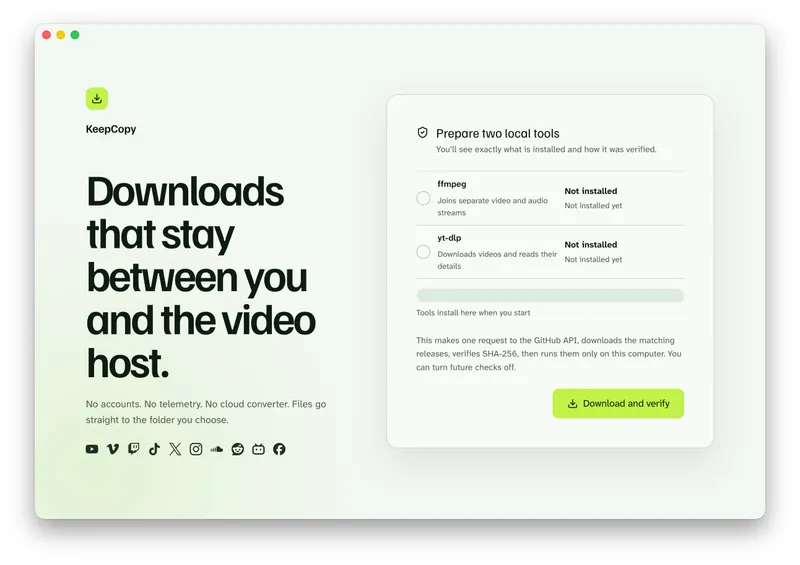
Launch KeepCopy on macOS, Windows, or Linux. First run installs and verifies the official **yt-dlp** release and **ffmpeg** on this computer. You do not hunt a **package manager**.
### Step 2: Paste the TikTok URL
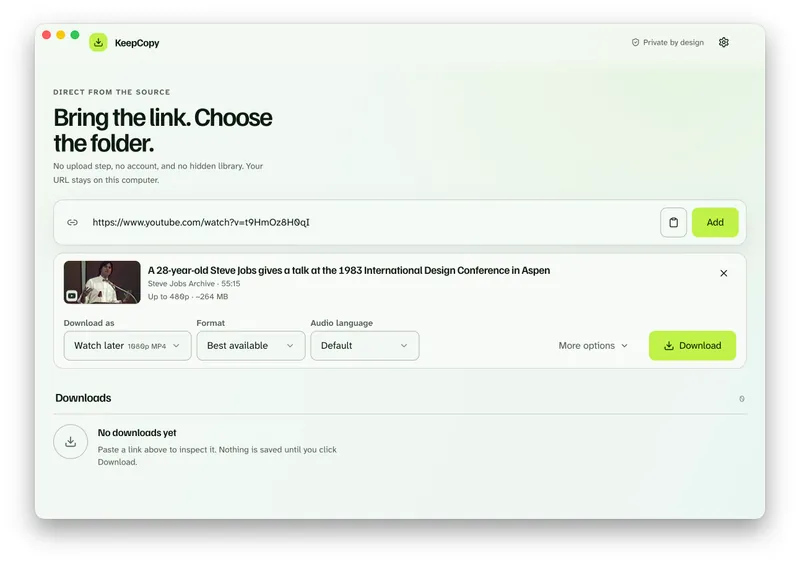
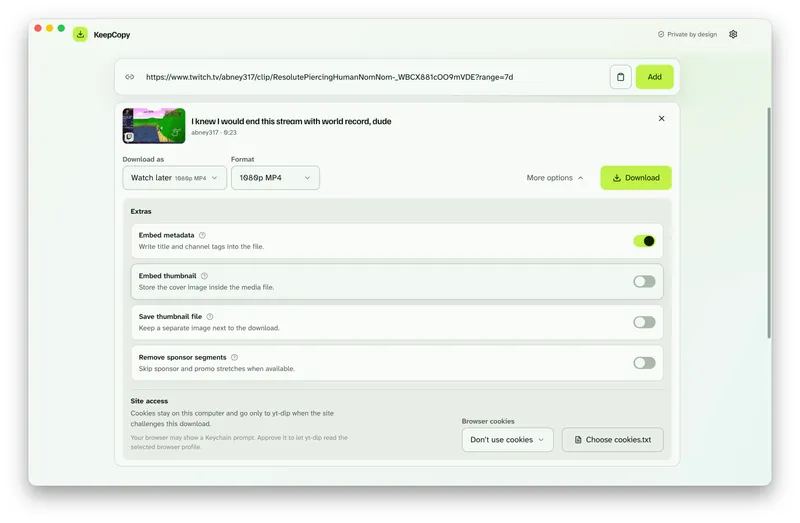
Drop in the `/video/` page or the `vm.` / `vt.` share link. The app inspects it on this computer before anything is saved. You should see that video’s title.
### Step 3: Pick 720p, 1080p, or 4K MP4
Choose **720p MP4**, **1080p MP4**, **4K MP4**, or **best available** when the source has them. Prefer **1080p** or **4K** when you want one file with sound. Hosts often split picture and audio; ffmpeg joins them here.
**Watch later** is a shortcut for those everyday presets — [Download 1080p video without command line](/blog/download-1080p-without-command-line).
### Step 4: Save it to a folder
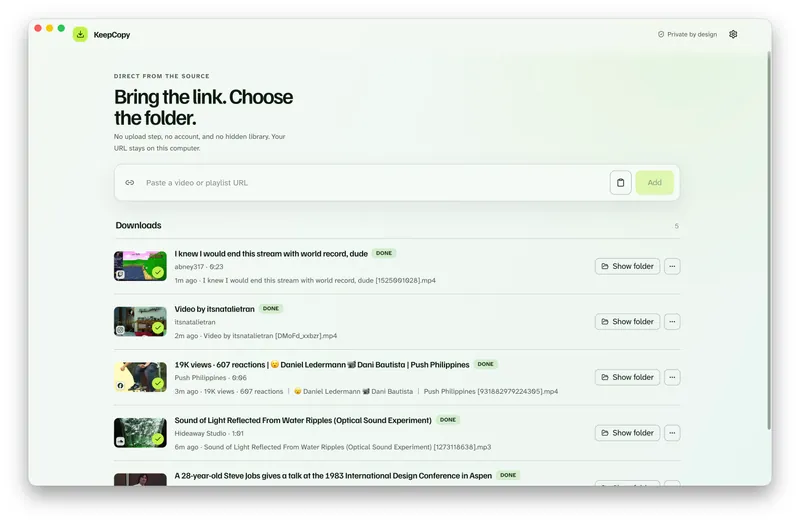
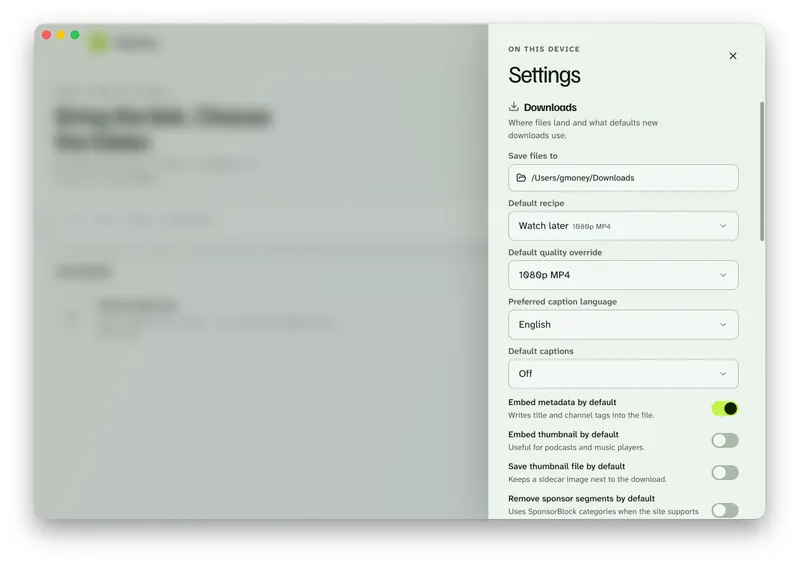
In Settings, set **Save files to** to a folder on this computer. The queue shows progress, cancel, and retry. When it finishes, **Show folder** reveals the video.
If TikTok challenged the inspect, open **More options** and set **Site access** before you queue the job.
Save the video. [Paste a TikTok link in KeepCopy.](/#download)
What this will not do
**KeepCopy cannot restore a video TikTok already took down.** If the page is gone, inspect has nothing to load.
**It will not download Stories.** This page is a `/video/` page or a share link you can open as a page.
**It will not turn a photo slideshow into a video.** A `/photo/` post has no MP4 stream. There is no ZIP of stills.
**It will not strip a logo in the UI.** There is no watermark-remover control. We do not guarantee a clean frame.
**It will not unmute audio TikTok already muted.** If the host silenced the clip, the saved file keeps that mute.
This is not a TikTok browser, a slideshow exporter, or a website that fetches the video for you.
If the picture is mute because streams were not joined, see [Downloaded MP4 no audio](/blog/downloaded-mp4-no-audio).
If you wanted audio only
**MP4 presets keep the picture.** If you wanted the soundtrack, open **Audio** and pick **audio MP3** — same local path, no converter in the middle. The generic audio how-to is [Download video as MP3 on the desktop](/blog/download-video-as-mp3-desktop).
The download stays **local-first**. For the path of a pasted link, read [What stays on your computer](/blog/what-stays-on-your-computer). If the queue failed, [Video download keeps failing](/blog/video-download-keeps-failing). More [workflow](/blog/category/workflow) notes live with this one.
Micro-FAQ
### Which TikTok URL do I paste?
Paste a `tiktok.com/@user/video/` page or a `vm.tiktok.com` / `vt.tiktok.com` share link. Not a profile, For You, a search page, a `/photo/` slideshow, or a Story.
### Does this remove the TikTok watermark?
There is no watermark-remover control. TikTok’s in-app save often stamps a username on the picture. Paste the post URL so this computer talks to TikTok. We do not strip overlays in the UI.
### Is KeepCopy a website that converts the video?
No. It is a **desktop video downloader**. A pasted TikTok URL goes from this computer to TikTok — never through our servers.
### Does this download TikTok photo slideshows?
No. A `/photo/` post is stills plus a soundtrack, not a video page. This job is one video as MP4. Stories are not a shipped control here.
KeepCopy is a desktop video downloader. Paste a link, pick quality, and save the video to a folder on this computer.
[Buy on Gumroad](https://keepcopy.app/#download)