yt-dlp remove sponsor segments without the command line
Make yt-dlp remove sponsor segments without copying a command. The desktop setting saves the result locally when source markers are available.
A sponsor read that was tolerable once becomes an interruption every time you play the saved video. yt-dlp can remove sponsor segments, but the command-line path means finding the right flag, checking marker categories, and keeping ffmpeg available.
To make yt-dlp remove sponsor segments without copying a command, use KeepCopy’s Remove sponsor segments switch. Paste the video link, inspect it, turn on the option, and save the result to a folder on this computer. Removal works only when the source is supported and markers are available.
On this page
- What the setting does
- How to make yt-dlp remove sponsor segments
- When sponsor removal works
- What happens when markers are missing
- Turn removal on by default
- What stays on this computer
- What this workflow does not do
- Micro-FAQ
What the setting does
Remove sponsor segments cuts marked sponsor and promotional stretches during the download workflow. You get the saved video without those marked sections when the site supports the feature and marker data exists.
The control is in More options under Extras. Its label is direct: Remove sponsor segments. KeepCopy handles the yt-dlp option and the local ffmpeg work behind that switch.
You do not paste a flag or choose marker categories in the current UI. This is one on-or-off decision for the download you are adding.
That distinction matters: KeepCopy is not deciding for itself which speech sounds promotional. It uses available marker data. If the video has no applicable markers, the app cannot create them.
How to make yt-dlp remove sponsor segments
The complete workflow is paste, inspect, enable the switch, and download. Nothing has to be installed from a package manager, and you never type a yt-dlp command.
Step 1: Paste and inspect the video link
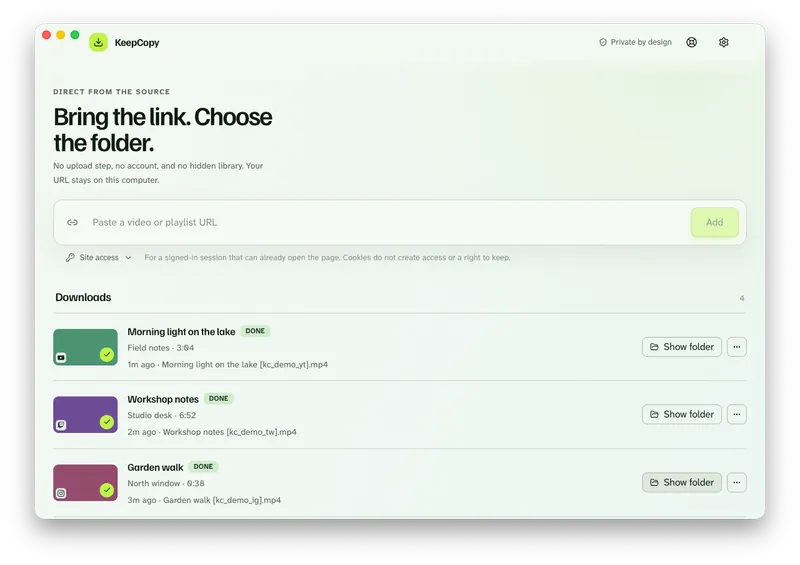
Open KeepCopy on macOS or Windows. Linux is coming soon. Paste the URL for the video page and press Add.
The app inspects the link on this computer before a download starts. You see the title and the choices that apply to the source instead of committing to an unknown result.
Step 2: Choose the video quality
Pick the quality you want in ordinary language: 720p MP4, 1080p MP4, 4K MP4, or best available. A recipe such as Watch later can set an everyday choice without exposing format codes.
Sponsor-segment removal is an extra, not a quality mode. Choose the video you want first, then apply the removal option to that download.
Step 3: Enable Remove sponsor segments
Open More options. Under Extras, turn on Remove sponsor segments.
The description tells you the boundary: “Skip sponsor and promo stretches when available.” That last phrase is important. The source and its marker data determine whether there is anything to remove.
Step 4: Download to a folder
Choose the download folder and click Download. KeepCopy adds the job to the local queue.
The queue shows progress and gives you cancel and retry controls. When the job finishes, use reveal in folder to open the location you selected.
KeepCopy
No telemetry. No account. The video stays on this computer.
Find more local download how-tos under Workflow guides.
When sponsor removal works
Two conditions must be true: the site must support the feature, and markers must exist for that video. The option is mainly useful for supported YouTube videos with marked sponsor or promotional stretches.
Think of the setting as instructions attached to a download, not as automatic speech analysis. yt-dlp reads the available marker data, and ffmpeg performs the local media work needed to produce the saved result.
This means a newer upload may not have usable markers yet. A video may also have a sponsor read that nobody marked. KeepCopy cannot infer either one from the audio.
Before relying on the result, play across the places where you expected a cut. The running app and the completed video are the final check.
What happens when markers are missing
No marker means there is no identified stretch for KeepCopy to remove. Turning on the switch does not guarantee that every promotion disappears.
Use this checklist when a saved video still contains a sponsor section:
- Confirm that Remove sponsor segments was enabled for that job.
- Check that you added the actual video page, not a site homepage.
- Remember that marker availability varies by video.
- Treat an unmarked promotion as unavailable to this workflow.
The setting also does not remove advertising delivered separately by a site or rewrite the video’s spoken content. It applies to marked stretches in the downloaded media.
Turn removal on by default
Settings can enable sponsor removal for future downloads. Turn on Remove sponsor segments by default under the download defaults when this is how you usually save watch-later videos.
The default saves a repeated click. It does not change the availability rule: unsupported sources and videos without markers still have nothing identified for removal.
You can review More options for each new job and change the switch before downloading. That makes the default a starting point rather than a hidden rule.
For the broader everyday-quality workflow, see Download 1080p video without command line. To understand the engine setup KeepCopy handles, read yt-dlp without the terminal.
What stays on this computer
The video processing happens locally. KeepCopy runs the official yt-dlp release and ffmpeg on this computer, then writes the video to the folder you chose.
The desktop app sends no telemetry and no crash reports. A pasted URL goes from your computer to the chosen video host, never through our servers. There is no KeepCopy account and no cloud converter in the middle.
Optional checks can look for a newer official yt-dlp release on GitHub. You can turn those checks off, and they never include the URLs you paste.
The desktop app and this marketing site follow different rules. Read What stays on your computer and Privacy for the exact distinction.
What this workflow does not do
Sponsor-segment removal is a narrow download option, not a video editor. It does not give you a timeline or let you draw custom cut points.
It also does not:
- Detect sponsor reads when marker data is absent.
- Promise removal on every host or every video.
- Edit a video that is already sitting in a folder.
- Provide a custom marker-category picker.
- Build a media library or player.
KeepCopy remains a local-first desktop video downloader. You paste a link, inspect it, pick quality, choose the available extras, and save the video to a folder on this computer.
Micro-FAQ
Does sponsor-segment removal work on every video?
No. The source must be supported and marker data must exist for that video. KeepCopy cannot identify or invent missing sponsor markers.
Where is Remove sponsor segments in KeepCopy?
Add and inspect the video, open More options, then enable Remove sponsor segments under Extras before downloading.
Can I turn sponsor-segment removal on by default?
Yes. Settings includes Remove sponsor segments by default. You can still change the option for an individual download.
Do I need to install yt-dlp or ffmpeg?
No. KeepCopy installs and verifies the official yt-dlp release and ffmpeg on first launch.
KeepCopy
Local-first desktop app
KeepCopy is a desktop video downloader. Paste a link, pick quality, and save the video to a folder on this computer.