Download video captions as SRT
Download video captions as srt without the video. Pick Captions, save the host’s track to a folder on this computer.
You wanted the words. Not the picture. A converter you found in search takes the same link through someone else’s page. A copied command wants skip-download flags and a subtitle convert you have to remember.
KeepCopy is a desktop video downloader for that job. To download video captions as SRT, pick the Captions recipe — or Captions (SRT) in the quality list — and save the host’s track to a folder on this computer.
No cloud hop. No package manager. KeepCopy does not invent a transcript.
On this page
- What “captions as SRT” means
- How to download video captions as SRT
- Captions vs Lecture vs Archive
- Human-written or auto
- Using the SRT in another app or a model
- Why skip a web converter for the caption file
- If the source has no captions
- Micro-FAQ
What “captions as SRT” means
You paste a link. You keep a file of timed lines — not a video, and not a transcript we invent.
An SRT is numbered cues with start and end times. Players and other apps can read those lines. It is still the host’s caption track: human-written or automatic. Auto tracks are often imperfect. You get timecodes, not a cleaned essay.
Save video captions as SRT here means skip the picture. Official yt-dlp can write subs and skip the video; KeepCopy’s Captions recipe is that wrap in ordinary language. You never type those flags.
The host still has the talk. The app inspects the link on this computer, then writes the caption file to the folder you choose.
That is the whole claim of this page: the words, not the video. Words with the picture is Download a lecture with captions.
How to download video captions as SRT
Paste the link, choose Captions, confirm the language, set the folder in Settings, and queue the job. The decisions stay on screen before anything is saved.
Step 1: Open KeepCopy
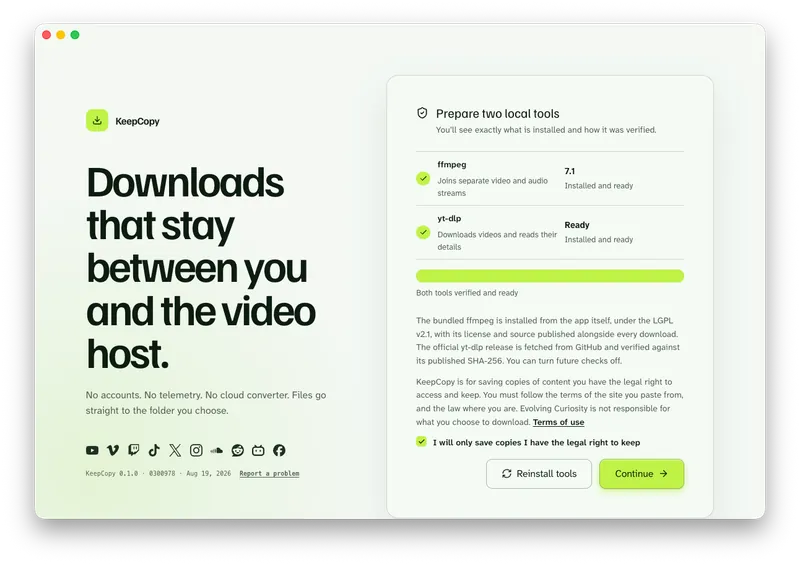
Launch KeepCopy on macOS or Windows. Linux is coming soon. On first launch, the app installs and verifies the official yt-dlp release and a bundled ffmpeg on this computer.
You do not hunt a package manager or paste an install command. The engine is part of first run.
Step 2: Paste the link
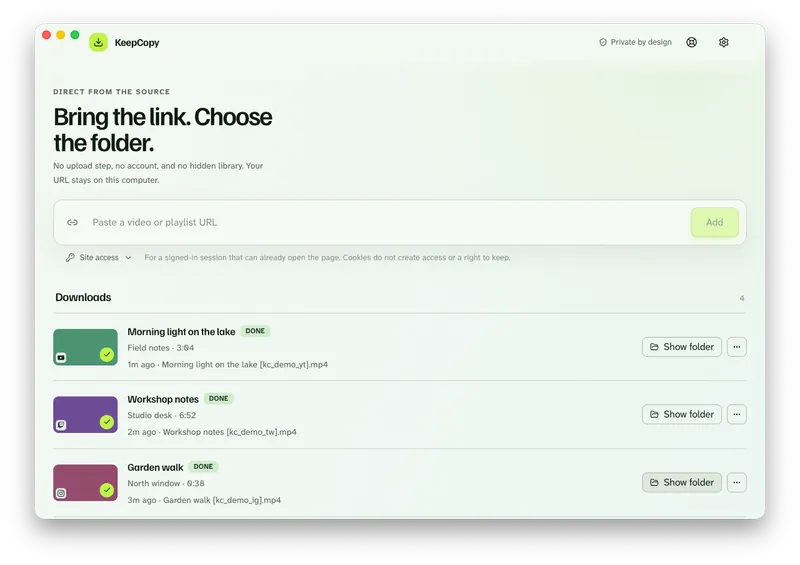
Copy the URL from your browser and paste it into KeepCopy. The app inspects the link on this computer before download, so you see the title and whether caption tracks exist.
A YouTube watch, youtu.be, or Shorts URL is a typical paste. If the talk sits on a course page that is not a video host, paste that page — Download embedded video. If you pasted a playlist URL instead, inspect it and select the entries you want. The app does not silently grab every item.
Step 3: Choose Captions
Open the Captions recipe when you want the SRT only. The UI describes it as SRT only. The words, not the video.
That points at Captions (SRT) and turns captions on. You can still pick Captions (SRT) yourself in the quality list. Video extras — embed thumbnail, embed metadata, sponsor segments — stay off. Nothing is a hidden second product.
Screenshot of captions-recipe-srt
Step 4: Confirm the language, then the folder
When captions are on, Languages appears. A short list is checkboxes. A long auto list is chips plus Add language — type a name or code, pick the tracks, then Done. Kind sits on On the page and Auto-generated, not on every row.
These controls appear for an individually inspected video with caption tracks. Playlist previews hide caption mode and language controls. Inspect each video separately when a particular language matters.
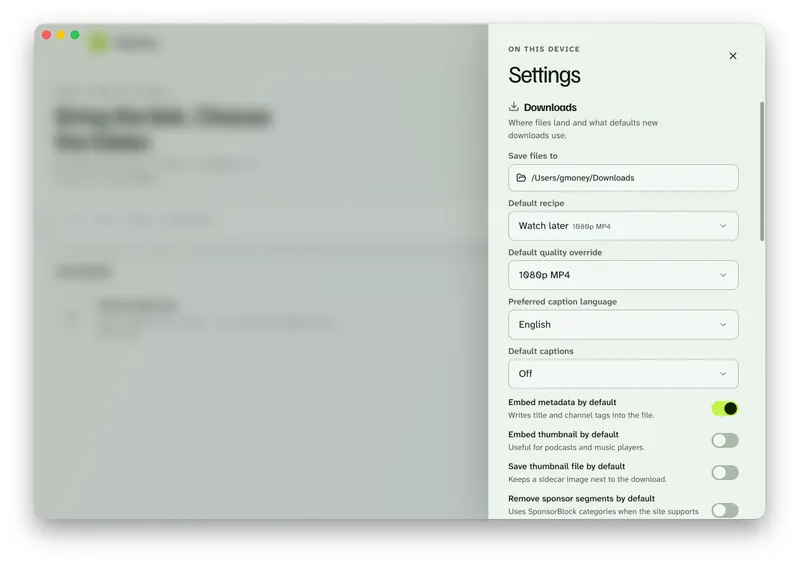
In Settings, set Save files to to a folder on this computer, then add the job to the queue. Progress, cancel, retry, and Show folder live there.
When the download finishes, the SRT is in that folder — offline local media, not a library inside the app. Open it in whatever you already use.
KeepCopy
No telemetry. No account. The video stays on this computer.
Captions vs Lecture vs Archive
Captions is the shortcut for the words only. Lecture keeps the picture. Archive keeps a more complete copy.
- Captions — Captions (SRT). No video. The host’s timed lines in a folder on this computer.
- Lecture — 1080p MP4, captions On (auto OK), Embed captions. Words with the picture. Full steps in Download a lecture with captions.
- Archive — best available, the same caption path as a sidecar SRT when embed is off, plus artwork, tags, a separate thumbnail, and the page description. Full steps in Download video with captions, thumbnail, metadata.
Other shipped recipes stay in their own jobs:
- Watch later when you want everyday 1080p and captions do not matter — Download 1080p video without command line.
- Best quality when you want the highest video the source offers.
- Audio when you want the soundtrack only — Download video as MP3 on the desktop.
This page stays on Captions. You do not need Lecture to finish a file of words.
Human-written or auto
Pick the words the source already has. The control is Download captions. On this recipe, Off is not a choice — there would be nothing to save.
- On (human-written) — only tracks a person supplied.
- On (auto OK) — automatic captions are acceptable too. This is the Captions default.
Settings can store a Preferred caption language and Default captions for later downloads. A recipe still wins for the job you start from Captions.
KeepCopy does not invent a language the host never offered. Auto tracks stay the host’s speech-to-text, including the mistakes.
Using the SRT in another app or a model
The job this page finishes is the local file. After Show folder, you have an SRT on this computer. Attaching that file to another app — or to a model — is your next step, not ours.
KeepCopy does not transcribe. It does not run a model, clean the cues into an essay, or teach another product’s window. The lines are still whatever the host published, with timecodes.
If you later upload that SRT somewhere, that hop is yours. The pasted video URL never went through our servers. The desktop app sends no telemetry and does not create an account.
For the path of a pasted link, read What stays on your computer.
Why skip a web converter for the caption file
A converter site is another hop for words you already meant to keep locally.
You paste the link, wait on a second page, and may not know where the work happened. Browser extensions add another trust surface for the same save. A copied command often needs --skip-download and --convert-subs srt — flags yt-dlp documents and KeepCopy already wraps.
KeepCopy is local-first. A pasted URL goes from this computer to the video host — never through our servers.
To skip the converter hop on an everyday video, see Save web video without a web converter. The longer “skip the terminal” walkthrough is yt-dlp without the terminal.
This page’s job is the caption file: SRT, no video, on the desktop.
If the source has no captions
KeepCopy cannot add words that are not there. Inspection shows what the host published. When inspection finds no caption tracks, Captions (SRT) may be hidden from the quality list. Choosing the Captions recipe can fall back to another preset, and the preview may warn that there are no captions to save. Check the selected quality before clicking Download; the app does not always block the job.
That is not a broken download. The page had no captions to keep.
If you still want the talk, switch to Lecture for 1080p, or Watch later when the words do not matter.
If a host challenges inspect, open Site access under the paste field — video download says sign in required. KeepCopy reads cookies locally and yt-dlp sends applicable cookies to the host, never through our servers.
Micro-FAQ
Does KeepCopy invent a transcript?
No. Human-written and auto captions are the host’s. KeepCopy does not generate words the page never published.
Can I download captions without the video?
Yes. The Captions recipe saves Captions (SRT) and skips the video. A copied command needs skip-download flags for the same job.
How is Captions different from Lecture and Archive?
Captions is the SRT only. Lecture is 1080p plus the words. Archive is the complete copy — best available quality, captions, artwork, a separate thumbnail, and the page description.
Can I use the SRT in another app or a model?
After the file is in your folder, attaching that local SRT is your next step. KeepCopy does not run a model or invent a cleaned essay. The pasted video URL never went through our servers.
What if the page has no captions?
Inspect shows the tracks the host published. If there are none, there is nothing to save. KeepCopy cannot add words that are not there.
More workflow notes live under Workflow guides.
KeepCopy
Local-first desktop app
KeepCopy is a desktop video downloader. Paste a link, pick quality, and save the video to a folder on this computer.