yt-dlp without the terminal
yt-dlp without the terminal: paste a link, pick quality in a desktop video downloader. No package manager, no copied command, no command line.
Copying a download command from a README is tedious — and a stale snippet wastes the next twenty minutes in a terminal. KeepCopy is the local desktop app that runs the same engine without asking you to type it.
Most guides start with a package manager, then a command you are supposed to paste. If you will not open a terminal to get the video, this app is for that job.
This guide is yt-dlp without the terminal: paste a link, pick a quality in ordinary language, and save a video to a folder on this computer.
On this page
- What you do instead
- First launch installs the engine
- Plain-language quality
- The video lands in a folder you choose
- Playlists: select entries
- What is still yt-dlp
- What this is not
- Checksums you can verify
- Micro-FAQ
What you do instead
The whole flow is four steps. You never type yt-dlp. You never pass a format code. You never wonder whether the snippet you copied still works.
Step 1: Open the app
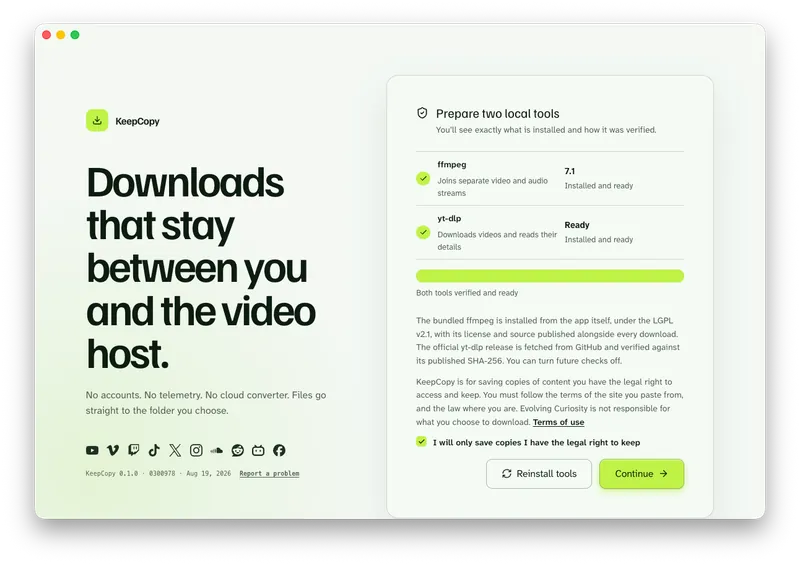
Launch KeepCopy on macOS or Windows. Linux is coming soon. First run installs and verifies yt-dlp and ffmpeg on this computer. You do not install that stack yourself. On a Mac, the same job is written out in yt-dlp for Mac.
Step 2: Paste the link
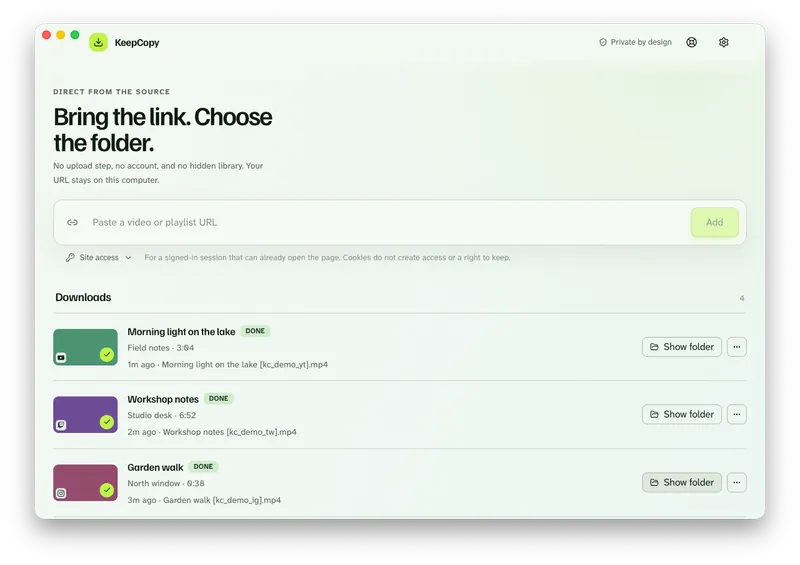
Drop in a video or playlist URL the way you would into a search bar. No flags, no quotes, no “run this in a terminal.”
The app inspects the link on your machine before anything is saved. You see a title and the options that actually apply to that source.
Step 3: Choose how it should look
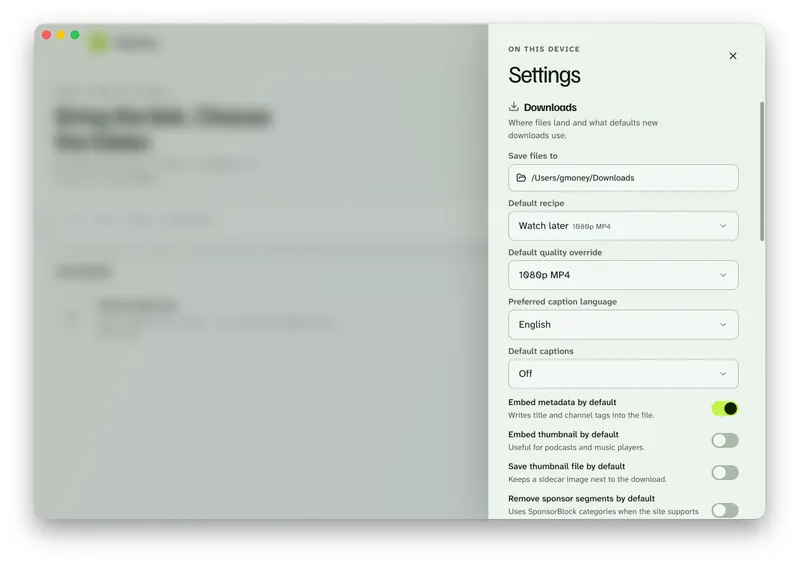
Pick a quality from a list written in ordinary language: 720p MP4, 1080p MP4, 4K MP4, best available, audio only, or Captions (SRT). You never pass a format code.
Step 4: Save it to a folder
In Settings, set Save files to to a folder on this computer. The video lands there. Nothing is uploaded to us. There is no cloud converter.
The queue shows progress, cancel, and retry. When it finishes, Show folder reveals the file.
KeepCopy
No telemetry. No account. The video stays on this computer.
First launch installs the engine
yt-dlp without the terminal still needs the engine. The difference is who installs it.
On first launch, the app places the official yt-dlp release and ffmpeg on this computer and checks them. You see what is being installed and how it was verified. You do not hunt a package manager, a PATH, or a copied command.
Wondering what that stack normally asks of you first? Do you need Python for yt-dlp covers which official builds need an interpreter, and why ffmpeg is the dependency people miss.
After that, optional checks can look for a newer official yt-dlp release. You can turn those checks off. They never include the URLs you paste.
The install is a one-time walkthrough, not a homework assignment. You confirm what is being placed on the machine, then you paste a link.
If something looks wrong later, Settings can repair or reinstall the tools. The download still happens on this computer, between you and the host.
Plain-language quality
Format codes are the usual tax for using yt-dlp on the command line. This app does not ask you to learn them.
You pick from labels the UI already shows: 720p MP4, 1080p MP4, 4K MP4, best available, audio M4A, audio MP3, or Captions (SRT). The list shrinks to what that source actually offers.
That is enough for the everyday job: get a watchable video without opening a terminal. Recipes in the app (Watch later, Best quality, and the rest) are shortcuts for the same labels. For the everyday 1080p path, see Download 1080p video without command line. This guide stays on the CLI-avoider path — paste, pick, save — not a tour of every recipe.
If the source has more than one audio language, you can choose the track. When a downloaded video has auto-dubbed audio, that picker is the fix. Captions can be off, human-written, or auto, when the source has them. Those are extras. They are not required to finish a download.
The video lands in a folder you choose
Offline local media means a video on disk, not a library inside the app.
You choose the folder. The app writes there. There is no account, no upload step, and no hidden collection you have to browse later.
The queue is the working surface: progress, cancel, retry, reveal in folder, remove. When the job is done, the video is yours in the place you picked.
That is the product. It is a desktop video downloader, not a player and not a website that fetches the video for you.
Playlists: select entries
You can paste a playlist URL. The app inspects it and lets you select the entries you want, then queue those.
It does not silently download every item in one run. If you want three videos from a list of forty, you pick those three. The full walkthrough is Download selected videos from a playlist.
That is the honest workflow. A playlist is still “paste a link, choose, save” — with an extra selection step so you stay in control.
What is still yt-dlp
Under the hood, the app uses the official yt-dlp release — the same engine people trust on the command line. ffmpeg is there too, so separate video and audio streams can be joined into a normal file. If a saved MP4 is mute or stuck at 360p, see Downloaded MP4 no audio. For the hosts we name, and what the engine may still inspect, see what video hosts work.
You get that stack without installing it yourself. The first launch walks through what is being placed on your machine and how it was checked.
- Engine
- Official yt-dlp release, installed and verified on first launch.
- Companion
- ffmpeg, so video and audio streams can be joined into a normal file.
- Platforms
- macOS and Windows. Linux coming soon.
- Checksums
- Every downloadable app artifact publishes a SHA-256 checksum.
The command line is still there for people who want it. This app is for people who do not.
What this is not
It is not a website that converts the video in the cloud. It is not a wrapper that ships your URL to someone else’s server.
The download happens on your computer, between you and the host. A pasted URL goes from your computer to the video host you chose. It is never forwarded through our servers.
The running desktop app sends no telemetry and no crash reports. It never contacts this marketing site. Optional checks for a newer yt-dlp release can be switched off.
If you already live in a terminal, you may not need this. If you have been putting off yt-dlp because of the command line, you do.
The desktop app and this website follow different rules. Read What stays on your computer and Privacy.
Checksums you can verify
Every downloadable app artifact publishes a SHA-256 checksum. Compare the file you received to the published hash before you run it.
Gumroad, when it is listed, is the one purchase channel. A checksum is published with the download.
That is a supporting detail, not a second product. You came here to skip the terminal. The checksum is how you check the installer you just got.
Micro-FAQ
Do I need to install yt-dlp myself?
No. First launch of KeepCopy installs and verifies the official yt-dlp release and ffmpeg on this computer.
Does the downloaded video stay on this computer?
Yes. In Settings, set Save files to. The video lands there. Nothing is uploaded to us, and there is no cloud converter in the middle.
Can I add a playlist?
Yes. Paste a playlist URL, inspect it, and select the entries you want. The app does not silently download every item in one run.
Is this a website that converts the video?
No. KeepCopy is a local-first desktop app. A pasted URL goes from your computer to the video host.
KeepCopy
Local-first desktop app
KeepCopy is a desktop video downloader. Paste a link, pick quality, and save the video to a folder on this computer.