Download video with captions, thumbnail, metadata
Download video with captions, thumbnail, metadata in one local workflow. Save the best video, captions, artwork, and tags to a folder on this computer.
A video alone can be an incomplete copy. The picture survives, but its captions, thumbnail, and useful tags stay behind on the page.
Rebuilding those pieces later means revisiting the source, matching files by hand, or translating several command-line flags. The result may still be a blank-looking video with no captions when you need them.
To download video with captions, thumbnail, metadata in one local workflow, use the Archive recipe in KeepCopy. It chooses best available quality, keeps captions when the source offers them, embeds the thumbnail and metadata, saves a separate thumbnail image, and saves the page description to a folder on this computer.
On this page
- What the Archive recipe keeps
- How to download video with captions, thumbnail, and metadata
- How captions work
- Embedded thumbnail or separate image
- What metadata means here
- Where the archive lands
- What this workflow does not create
- Micro-FAQ
What the Archive recipe keeps
Archive is the preset for keeping more than the picture. It combines the shipped controls that matter for a more complete local copy:
- Best available quality for the video and audio.
- Captions when available, with a language choice.
- Embedded captions for players that support them.
- Embedded metadata including title and channel tags.
- Embedded thumbnail inside the media file.
- A separate thumbnail image beside the download.
- Save description — the page text in a file next to the download.
KeepCopy still produces a normal video in a folder. It does not create a media library, catalog, or archive vault.
The recipe is a shortcut, not a hidden workflow. Open More options after choosing Archive and you can see the caption and Extras controls it enabled.
Screenshot of archive-recipe-summary
How to download video with captions, thumbnail, and metadata
Paste the link, choose Archive, check the available captions, and download. The work runs locally on macOS or Windows. Linux is coming soon.
Step 1: Paste and inspect the video link
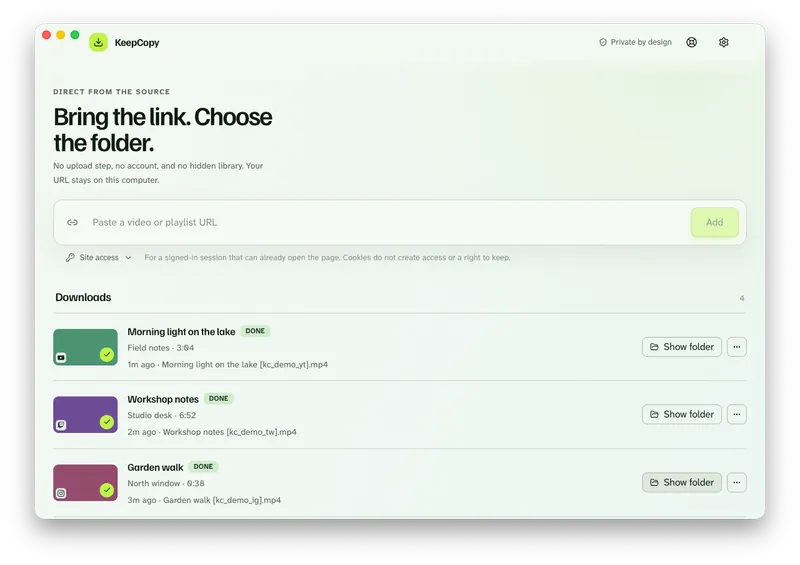
Open KeepCopy and paste the video URL. Press Add so the app can inspect the source before anything is downloaded.
The preview tells the app which quality, caption languages, and audio choices the source actually offers. A homepage is not enough; paste the video page URL.
Step 2: Choose Archive
Open the Download as menu and choose Archive. Its description is “Best quality, captions, thumbnail, and metadata.”
Archive selects best available quality. It also turns on automatic captions, caption embedding, embedded metadata, embedded thumbnail artwork, and a separate thumbnail file.
Screenshot of download-as-archive-recipe
Step 3: Check captions and extras
Open More options. When the source has captions, Languages appears — checkboxes when the list is short, or chips plus Add language when it is long. Full caption steps are in Download lecture with captions.
Archive uses On (auto OK), which can include human-written or automatic captions from the source. Pick the languages you want. Leave Embed captions on to keep that track inside the video file for players that support it.
Under Extras, confirm:
- Embed metadata
- Embed thumbnail
- Save thumbnail file
- Save description
Step 4: Download to your folder
Click Download. KeepCopy adds the job to its queue and writes the result to the download folder set in the app.
The queue shows progress and lets you cancel or retry. When the job finishes, use reveal in folder to see the media file and separate thumbnail image.
KeepCopy
No telemetry. No account. The video stays on this computer.
More local how-tos are collected under Workflow guides.
How captions work
KeepCopy saves captions the source provides; it does not generate new ones. The available choices depend on what inspection finds on that video page.
The caption mode can be:
- Off when you do not want captions.
- On (human-written) when you only want manually supplied tracks.
- On (auto OK) when automatic captions are acceptable too.
Archive starts with On (auto OK) so the recipe can keep a caption track when one exists. You still choose from the languages shown on screen. If the source has no captions, KeepCopy cannot add words that are not there.
With Embed captions enabled, ffmpeg muxes the chosen track into the video for compatible players. Turn embedding off when you want the downloaded caption output separate instead. That sidecar is SRT. If you only want the caption file, use the Captions recipe — Download video captions as SRT.
The Lecture recipe also uses captions, but it targets an everyday 1080p file. Archive is the better fit when you also want best available quality, artwork, and tags.
Embedded thumbnail or separate image
Archive keeps the thumbnail in two useful forms. One copy is embedded in the media file; another is saved as a separate image beside it.
Embed thumbnail stores the cover image inside the downloaded media. Players and file browsers that support artwork can use it as a poster or cover.
Save thumbnail file writes a separate image, often WebP or JPG, to the output folder. That sidecar is useful when you want the artwork independently of the media file.
These controls keep the source thumbnail. They do not produce contact sheets, extract frames, or design new cover art.
What metadata means here
Embedded metadata means title and channel tags written into the media file. It helps compatible players, photo apps, and file browsers identify the download without relying only on its filename.
Save description writes the host’s page text into a .description file beside the download. Archive turns that on. It is the page’s words, not a transcript KeepCopy invents.
It does not turn the file into a database record. KeepCopy is not a media library, and this recipe does not create a searchable archive catalog.
The official yt-dlp release reads the information exposed by the source. ffmpeg handles the local file work needed to combine streams and embed supported details. KeepCopy installs and verifies both on first launch, so you do not have to assemble command-line flags yourself.
If you want the broader no-terminal workflow, read yt-dlp without the terminal.
Where the archive lands
Everything lands in the folder selected in KeepCopy. The result is offline local media, not a collection stored on our servers.
The pasted URL goes from your computer to the chosen video host. It never passes through our servers. The desktop app sends no telemetry or crash reports and does not create an account.
Optional checks can look for a newer official yt-dlp release on GitHub. You can turn those checks off, and they never include the video URLs you paste.
For the exact network split between the desktop app and this marketing site, read What stays on your computer and Privacy.
What this workflow does not create
Archive keeps available source details; it does not invent missing material.
It does not:
- Generate captions when the source has none.
- Create contact sheets or extract frames.
- Build a media library or player.
- Batch-transcode files already on your computer.
- Silently download every entry from a playlist.
For a playlist, you inspect the list and select entries before they enter the queue. The complete selection flow is in Download selected videos from a playlist.
The result stays deliberately simple: the best available file, the source details you selected, and a thumbnail image in a folder on this computer.
Micro-FAQ
What does the Archive recipe save?
Archive chooses best available quality, downloads captions when available, embeds captions, thumbnail, and metadata, saves a separate thumbnail file, and saves the page description.
Does KeepCopy create captions when the source has none?
No. KeepCopy can use human-written or automatic captions supplied by the source. It does not invent a caption track.
Can I save the thumbnail as a separate image?
Yes. Archive turns on Save thumbnail file, which keeps a separate image beside the media file. It also embeds the thumbnail in the media file.
Where are the archived files stored?
In the folder you choose on this computer. The queue can reveal the completed download in that folder.
KeepCopy
Local-first desktop app
KeepCopy is a desktop video downloader. Paste a link, pick quality, and save the video to a folder on this computer.