Download selected videos from a playlist
Download selected videos from a playlist: paste the list, inspect it, choose which playlist videos to download. It does not silently grab every item.
A playlist URL looks like one link and behaves like dozens. You wanted three talks. A copied command wants indexes. A converter you found in search grabs the whole list — or it never shows you what it took. A browser extension is the other common path for the same list.
Counting playlist indexes in a terminal is the usual tax. One stale snippet later, you have forty videos you did not ask for, or a flag you had to look up.
KeepCopy is a local-first desktop video downloader for that job. Download playlist software, here, means that desktop app — not a paste box online and not a phone package. You paste the playlist, inspect it, and download selected videos from a playlist by choosing the entries on screen. Those go to the queue. The app does not silently download every item.
On this page
- Why a playlist URL is not one video
- How to download selected videos from a playlist
- What inspect shows you
- Select the entries you want
- Quality for those files
- The queue is more than one video
- What this will not do
- What stays on this computer
- Micro-FAQ
Why a playlist URL is not one video
A playlist is a list of videos, not a single download. The URL is one string. The page behind it is many titles.
If you treat that string like a normal video link, the next step is usually a silent dump or a command that makes you count positions. Neither is the job. You wanted some of the list — the ones you would actually watch later.
KeepCopy inspects the playlist on this computer before anything is saved. You see the titles. You choose. Then the queue writes files to a folder you pick.
That is still paste, pick, save. The extra step is selection, so you stay in control.
The full paste-pick-save walkthrough — without a playlist — is yt-dlp without the terminal. This page is the list.
How to download selected videos from a playlist
You never type yt-dlp. You never pass playlist indexes. You never paste a stack of unrelated URLs.
Step 1: Open the app
Launch KeepCopy on macOS or Windows. Linux is coming soon. First run installs and verifies official yt-dlp plus ffmpeg on this computer. You do not install that stack yourself.
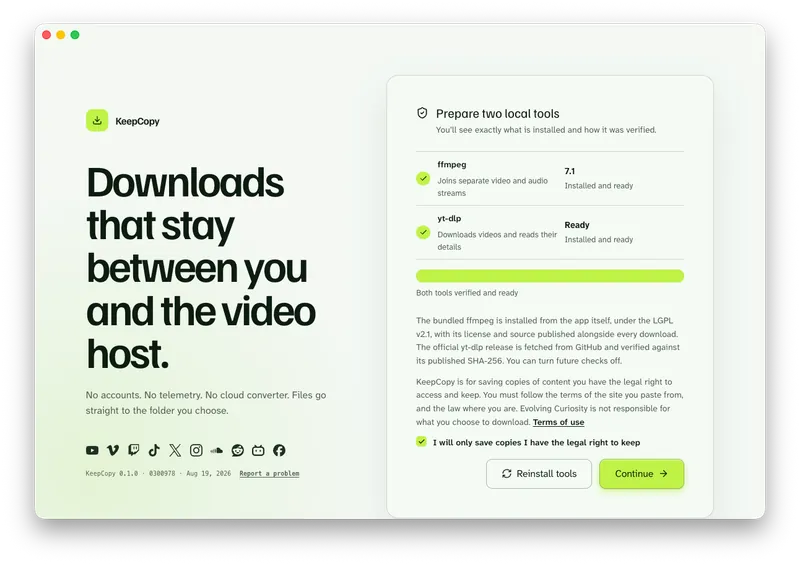
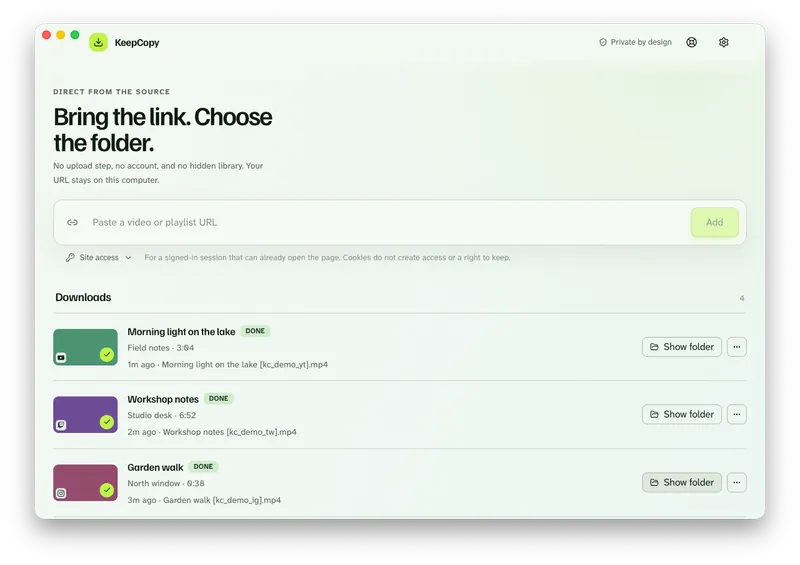
Step 2: Paste the playlist URL
Drop the playlist link into the field the way you would into a search bar. No flags, no quotes, no “run this in a terminal.” A public YouTube list looks like youtube.com/playlist?list= plus an id. That is still select-then-save. Watch Later and Mix are different lists — those posts are linked below.
Press Add. The app inspects the list on your machine before anything is queued.
Step 3: Inspect the list, then select entries
Each entry shows a checkbox, a thumbnail, a number, a title, and a duration. The toolbar shows how many are selected.
Uncheck the titles you do not want. Or Clear all and pick a few. Select all is there when you mean the whole list — after you have seen it.
The Download button stays off until at least one entry is selected. It then reads Download plus that count. Nothing is queued until you click it.
Screenshot of youtube-playlist-to-download-videos
Step 4: Pick quality, then save to a folder
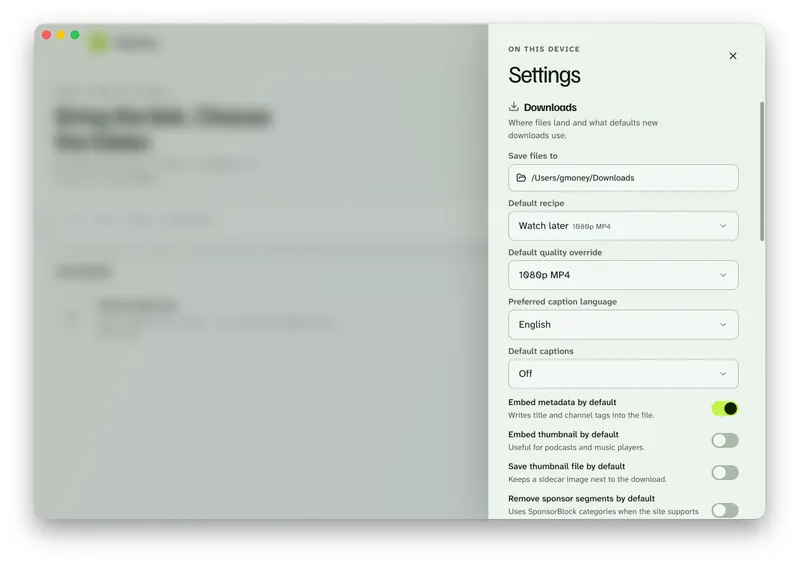
Choose a quality in ordinary language, or a recipe that is a shortcut for the same labels. In Settings, set Save files to to a folder on this computer.
The selected entries become jobs in the queue. Progress, cancel, retry, and Show folder apply to those files.
KeepCopy
No telemetry. No account. The video stays on this computer.
More workflow notes sit with this one.
What inspect shows you
Inspect means you see the list before a download starts. That is the difference between a playlist picker and a silent dump.
After you press Add, the app loads the playlist on this computer. You get thumbnails, titles, durations, and a running selected count. You are still looking at the list. No file has been written yet.
If the link is a single video, you get that video’s preview instead. If it is a playlist, you get the picker. Homepages and some pages are not a video or a playlist — the app will say so.
Supported hosts include YouTube, Vimeo, Twitch, TikTok, X, Instagram, SoundCloud, Reddit, Bilibili, and Facebook. Other pages the official yt-dlp engine can inspect may work. That is not a guarantee. The named list and that line are on what video hosts work. Paste a playlist page URL, not a site homepage.
Single-link jobs live on their own pages: Reddit with sound, Twitch VOD, Twitch clip, YouTube to MP4, YouTube to MP3, Facebook to MP4, Instagram to MP4, TikTok to MP4, X /status/ video, SoundCloud track, Vimeo with no download button.
Select the entries you want
Selection is required. The download does not start because you pasted a list.
Use the checkboxes. Three videos out of forty means you pick those three. The toolbar’s Clear all empties the checks so you can start from none. Select all puts every entry back on, on purpose.
The button will not start a job at zero. That is the honest control: you confirm a count you can see.
This is not a command that asks you for 1,4,7. You are looking at titles.
If a host challenges a signed-in list, cookies from a listed browser — Chrome, Chromium, Brave, Edge, Firefox, or Safari — or a cookies.txt file stay on this computer. Follow the sign-in-required download steps for that local cookie path. Public playlists do not need it. YouTube Watch Later is a private list=WL playlist — Download YouTube Watch Later. A generated Mix (list=RD on a watch URL) is Download YouTube Mix.
Quality for those files
The same plain labels apply to every selected entry. You are not picking format codes per item.
Choose 720p MP4, 1080p MP4, 4K MP4, best available, audio M4A, audio MP3, or Captions (SRT). Recipes — Watch later, Best quality, Audio, Lecture, Archive, and Captions — are shortcuts for those labels. A YouTube playlist you want as audio is YouTube playlist to MP3.
The list shrinks to what that source actually offers. You pick once. The queue uses that choice for the entries you selected.
ffmpeg still joins separate video and audio streams into one file on this computer. If a saved MP4 is mute or stuck at 360p, see Downloaded MP4 no audio.
Captions, extra audio languages, embed metadata, a thumbnail file, and sponsor-segment removal are extras in More options. Audio language is for a single video you inspect — Downloaded video has auto-dubbed audio — not for the playlist picker. If you want the marked promotional stretches removed from selected videos, follow yt-dlp remove sponsor segments without the command line. These extras are not required to finish the playlist job.
The queue is more than one video
The queue is how KeepCopy saves more than one video. Each selected playlist entry becomes its own job.
You watch progress. You can cancel, retry, reveal a finished file in its folder, or remove a job. The files land in the folder you chose — offline local media, not a library inside the app. If a row says Failed, follow Video download keeps failing.
That is the shipped “more than one” story. It is not a box where you paste twenty unrelated URLs. It is not batch transcode. It is a playlist you inspected, plus a queue.
Settings hold your download defaults, including the folder. First launch already placed the engine. Repair or reinstall lives in Settings if a tool looks wrong later.
On a Mac, the same paste-and-select flow is noted in yt-dlp for Mac. The steps on this page are the same on Windows. Linux is coming soon.
What this will not do
It will not silently download every item in a playlist because you pasted the URL. You inspect, you select, you click Download.
It will not take a list of mixed URLs and dump them. It will not batch-transcode files you already have. It is not a media library, a player, or a website that fetches the video for you.
It is not a cloud converter. There is no upload step and no account with us.
If you already live in a terminal and want to count indexes yourself, you may not need this. If you have been putting off the playlist because of that command, you do.
What stays on this computer
No telemetry. No crash reporting. No accounts. A pasted playlist URL goes from your computer to the video host you chose — never through our servers.
The download is local-first. Official yt-dlp plus ffmpeg run here. Optional checks can look for a newer official yt-dlp release on GitHub. You can turn those off. They never include the URLs you paste.
The running desktop app never contacts this marketing site. Gumroad, when it is listed, is the one purchase channel. Every downloadable app artifact publishes a SHA-256 checksum. Compare the file you received to the published hash before you run it.
The desktop app and this website follow different rules. Read What stays on your computer and Privacy.
Micro-FAQ
Does KeepCopy download every video in a playlist?
No. You inspect the list, choose the entries, then queue those. Nothing is saved until you click Download. The app does not silently grab every item.
How do I pick which videos to save?
After the app inspects the playlist, each entry shows a checkbox, a thumbnail, a title, and a duration. Uncheck what you do not want, or Clear all and pick a few. Select all is there when you mean the whole list.
Can I queue more than one video?
Yes. Each selected entry becomes its own job in the queue. You get progress, cancel, retry, and reveal in folder for those files — not a dump of unrelated URLs.
Do I need the command line to pick playlist items?
No. You never type a command or count playlist indexes. Paste the playlist URL, inspect it, and select entries on screen.
Does this work as a browser extension, on Android, or from a GitHub clone?
No. KeepCopy is a desktop app for macOS and Windows. Linux is coming soon. It is not a browser extension, not a phone app, and not a repo you clone. First launch installs official yt-dlp here. This product does not ship on GitHub.
Is KeepCopy open source?
No. KeepCopy is not claimed as open source. It runs the official yt-dlp release plus ffmpeg on this computer. Those engine tools have their own licenses.
KeepCopy
Local-first desktop app
KeepCopy is a desktop video downloader. Paste a link, pick quality, and save the video to a folder on this computer.