Download a lecture with captions
Download lecture with captions: pick Lecture, choose caption mode, and save the talk to a folder on this computer. Human-written or automatic tracks.
You wanted the talk. You got the picture — and not the words. You cannot search, follow, or keep the transcript with the video.
A converter you found in search hops the same link through someone else’s page. A copied command dumps subtitle files you then have to match by hand.
KeepCopy is the local desktop video downloader for that job. To download a lecture with captions, open the Lecture recipe, pick a caption mode the source actually offers, and save the talk to a folder on this computer.
No cloud hop. No package manager. KeepCopy does not invent a caption track.
On this page
- What “words with the picture” means
- How to download a lecture with captions
- Lecture vs Archive
- Caption modes
- Embed captions
- Why skip a web converter for a talk
- Where the lecture lands
- Playlists of talks
- If the source has no captions
- Micro-FAQ
What “words with the picture” means
You paste a link. You keep a watchable 1080p video plus the captions the host already has.
Save a talk with its captions here means follow along later — search the words, read them, keep them with the picture. It is not a captions product separate from the downloader. KeepCopy does not generate a transcript the source never published.
The host still has the talk. The app inspects the link on this computer, then writes 1080p MP4 and the caption choice you picked to the folder you choose.
That is the whole claim of this page: words with the picture, in ordinary language. The words-only path is Download video captions as SRT. The complete-copy path (best quality, artwork, sidecar thumbnail) is Download video with captions, thumbnail, metadata.
How to download a lecture with captions
Paste the link, choose Lecture, confirm captions, set the folder in Settings, and queue the download. The decisions stay on screen before anything is saved.
Step 1: Open KeepCopy
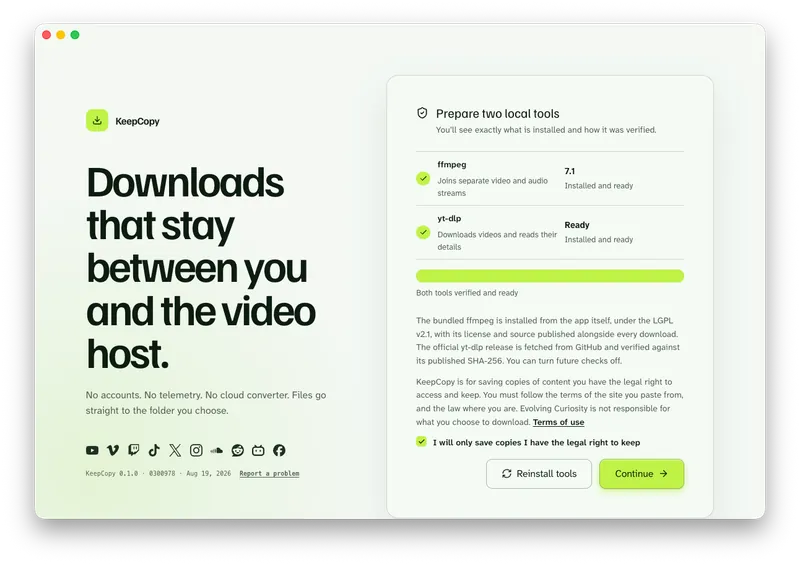
Launch KeepCopy on macOS or Windows. Linux is coming soon. On first launch, the app installs and verifies the official yt-dlp release and a bundled ffmpeg on this computer.
You do not hunt a package manager or paste an install command. The engine is part of first run.
Step 2: Paste the talk link
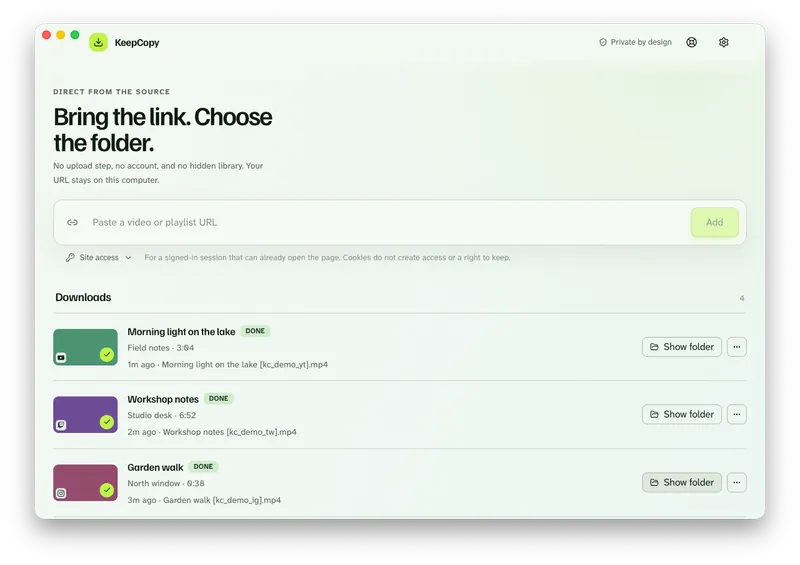
Copy the URL from your browser and paste it into KeepCopy. The app inspects the link on this computer before download, so you see the title and the options that actually apply.
If the talk sits on a course page that is not a video host, paste that page — Download embedded video. If you pasted a playlist URL instead, inspect it and select the entries you want. The app does not silently grab every item.
Step 3: Choose Lecture
Open the Lecture recipe when you want 1080p with captions. The UI describes it as 1080p with captions when available.
Lecture turns Download captions to On (auto OK) and turns on Embed captions. You can still open More options and change those. Nothing is a hidden second product.
Or pick 1080p MP4 yourself and set captions in More options. The quality list also includes 720p MP4, 4K MP4, and best available. This page stays on the Lecture job.
Screenshot of lecture-recipe-and-caption-controls
Step 4: Confirm the folder in Settings, then start the queue
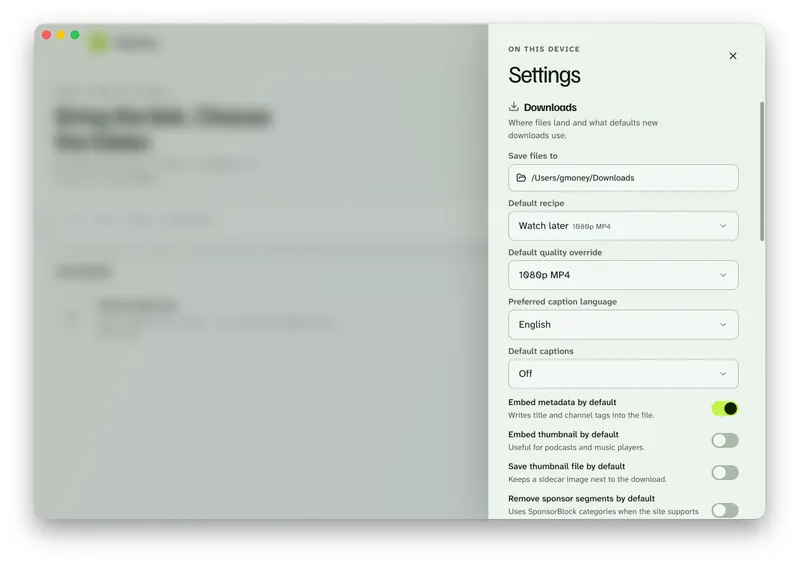
In Settings, set Save files to to a folder on this computer, then add the job to the queue. Progress, cancel, retry, and Show folder live there.
When the download finishes, the talk is in that folder — offline local media, not a library inside the app. Play it in whatever player you already use.
KeepCopy
No telemetry. No account. The video stays on this computer.
Lecture vs Archive
Lecture is the shortcut for a watchable talk plus captions. Archive is the shortcut for a more complete copy.
- Lecture — 1080p MP4, captions On (auto OK), Embed captions, embed metadata. No sidecar thumbnail.
- Archive — best available, the same caption path, plus embedded artwork, tags, a separate thumbnail file, and the page description. Full steps in Download video with captions, thumbnail, metadata.
Other shipped recipes stay in their own jobs:
- Watch later when you want everyday 1080p and captions do not matter — Download 1080p video without command line.
- Best quality when you want the highest video the source offers.
- Audio when you want the soundtrack only — Download video as MP3 on the desktop.
- Captions when you want the SRT file only — no video. Full steps in Download video captions as SRT. The words are still whatever the host published.
This page stays on Lecture. You do not need Archive to finish a talk you will watch later.
Caption modes
Pick the words the source already has. The control is Download captions.
- Off — no captions.
- On (human-written) — only tracks a person supplied.
- On (auto OK) — automatic captions are acceptable too. This is the Lecture default.
When captions are on, Languages appears. A short list is checkboxes. A long auto list is chips plus Add language — type a name or code, pick the tracks, then Done. Kind sits on On the page and Auto-generated, not on every row.
Settings can store a Preferred caption language and Default captions for later downloads. A recipe still wins for the job you start from Lecture.
KeepCopy does not invent a language the host never offered.
Embed captions
Embed captions muxes the chosen track into the video for players that support it.
Turn it off when you want a separate subtitle file beside the download instead. That sidecar is SRT. Lecture turns embed on. You can flip it in More options.
If you only want the caption file — for notes or another app — pick the Captions recipe. That saves Captions (SRT) and skips the video. Full steps in Download video captions as SRT. KeepCopy still does not invent a transcript.
That is not a captions editor. The words stay whatever the source published.
Why skip a web converter for a talk
A converter site is another hop for a lecture you already meant to keep locally.
You paste the link, wait on a second page, and may not know where the work happened. Browser extensions add another trust surface for the same save. A copied command often dumps subtitle files you then match by hand.
KeepCopy is local-first. A pasted URL goes from this computer to the video host — never through our servers. The desktop app sends no telemetry and does not create an account.
For the path of a pasted link, read What stays on your computer. To skip the converter hop on an everyday video, see Save web video without a web converter.
This page’s job is the talk: 1080p plus captions, on the desktop.
Where the lecture lands
You choose the folder. The app writes there.
There is no KeepCopy account page and no temporary cloud workspace. The queue is the working surface: progress, cancel, retry, reveal in folder, remove.
When the job completes, you have a normal video on disk — and captions if the source had them. Play it in whatever player you already use.
Settings can change download defaults and optional yt-dlp update checks. Those checks look for a newer official yt-dlp release on GitHub. You can turn them off. They never include the URLs you paste.
More workflow notes live under Workflow guides. The longer “skip the terminal” walkthrough is yt-dlp without the terminal.
Playlists of talks
A playlist URL is still select-then-save. Inspect the list, pick the entries you want, and queue those.
The app does not silently download every item in one run. If you want three talks from a list of forty, you pick those three. The full walkthrough is Download selected videos from a playlist.
Each selected entry can use Lecture or the same caption controls. The queue handles more than one job honestly — as jobs you started, not as a silent dump.
If the source has no captions
KeepCopy cannot add words that are not there. Inspection shows what the host published. If there is no caption track, Lecture still saves 1080p MP4. The caption controls have nothing to pick.
That is not a broken download. The talk had no captions to keep.
If the picture moves and there is no audio, that is a join problem — Downloaded MP4 no audio. Captions will not invent a soundtrack.
If the file plays but the voice is the wrong language, pick Audio language after inspect. That job is Downloaded video has auto-dubbed audio, not Lecture.
Micro-FAQ
Does KeepCopy invent captions for a talk?
No. KeepCopy can use human-written or automatic captions the source already has. It does not generate a new transcript.
How is Lecture different from Archive?
Lecture is 1080p plus captions so you can follow the talk. Archive is the complete copy — best available quality, captions, artwork, a separate thumbnail, and the page description.
Can I save only the caption file?
Yes. The Captions recipe saves Captions (SRT) and skips the video. Full steps in Download video captions as SRT. The words are still whatever the host published. KeepCopy does not invent a transcript.
Where does the lecture go?
In Settings, set Save files to a folder on this computer. The queue can reveal the finished video there when the download completes.
What if the source has no captions?
The caption controls stay empty or unused. KeepCopy cannot add words the host never offered. You still get the 1080p video.
KeepCopy
Local-first desktop app
KeepCopy is a desktop video downloader. Paste a link, pick quality, and save the video to a folder on this computer.