Download a YouTube video chapter
Download youtube video chapter: paste a watch link, pick host chapters or set Start and Stop, and save that part on this computer.
You searched download youtube video chapter. A converter you found in search saves the whole talk. A copied command wants --download-sections or a split of every chapter — and you still may not get the one section you meant.
You wanted the named part. You got a two-hour file, or a pile of files you did not pick.
KeepCopy is a desktop video downloader for that job. To download a YouTube video chapter here, paste the watch link, open More options, pick the host chapters under This part — or set Start and Stop — and save that video to a folder on this computer. Official yt-dlp plus ffmpeg run locally. The pasted URL never goes through our servers. The desktop app sends no telemetry.
On this page
- Why a chapter usually means the whole file
- Paste a YouTube watch link that has chapters
- This part is a pick
- How to download a YouTube video chapter
- Start and Stop
- Cleaner cuts
- What this will not do
- If you wanted the whole talk
- Micro-FAQ
Why a chapter usually means the whole file
YouTube chapters are labels on one video. They show as segments on the progress bar, or as timestamps in the description. The page is still one watch URL.
A paste box on someone else’s site treats that URL as the whole file. A browser extension has the same problem: the job is “save the video,” not “save Intro.”
The command-line version can cut a section. Official yt-dlp documents --download-sections for a chapter title or a time range from the URL. That is an engine fact. You should not have to type the flag.
KeepCopy stays a desktop video downloader. This page is only the named-part job. Your computer talks to YouTube. We do not see the URL.
Paste a YouTube watch link that has chapters
Paste the watch page for that one video.
youtube.com/watch?v=…youtu.be/…- A Shorts URL that is still that video
Open the video in your browser. If the progress bar is segmented, or the description lists timestamps, inspect will usually show Chapters on the quality line.
Do not paste YouTube Home, a channel, or a search page. Those are not this video.
A playlist URL is a list of videos, not chapters inside one file. That job is Download selected videos from a playlist. You select entries there. This part stays hidden on playlists.
A Twitch clip URL is a different object — Download Twitch clip. Do not paste that here and expect YouTube chapters.
This part is a pick
Selection is required. Inspect listing chapters is not permission to split the talk into every file.
After inspect, open More options. This part lists the host chapter titles with checkboxes when the host sent them. Uncheck what you do not want, or Clear all and pick one. Select all is there when you mean every section — after you have seen the list.
You can also type Start and Stop. Empty both is still the whole video.
Nothing is queued until you click Download. The default is still the whole video.
KeepCopy will not invent a chapter the host never published. If the preview does not say Chapters, the picker is not there. The clock fields still are.
How to download a YouTube video chapter
Paste the watch link, pick the chapters, set the folder in Settings, and queue the download. The decisions stay on screen before anything is saved.
Step 1: Open KeepCopy
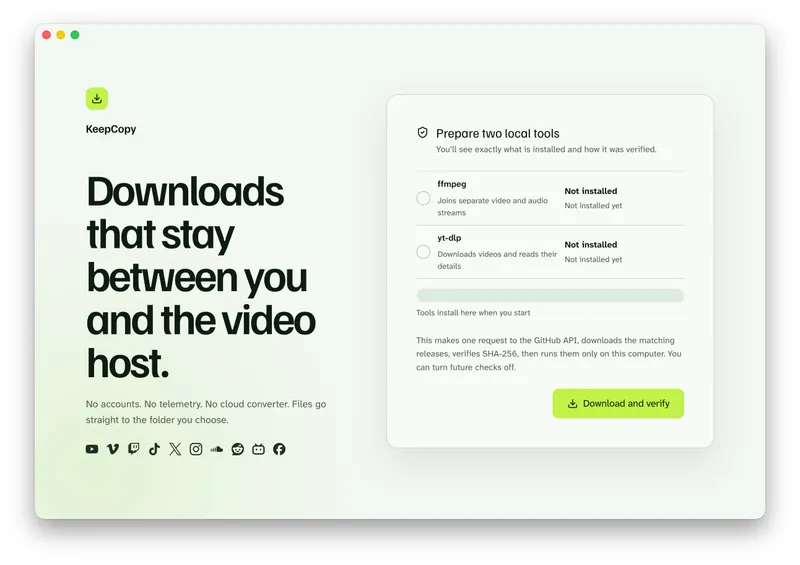
Launch KeepCopy on macOS or Windows. Linux is coming soon. On first launch, the app installs and verifies the official yt-dlp release and a bundled ffmpeg on this computer.
You do not hunt a package manager or paste an install command.
Step 2: Paste the watch URL
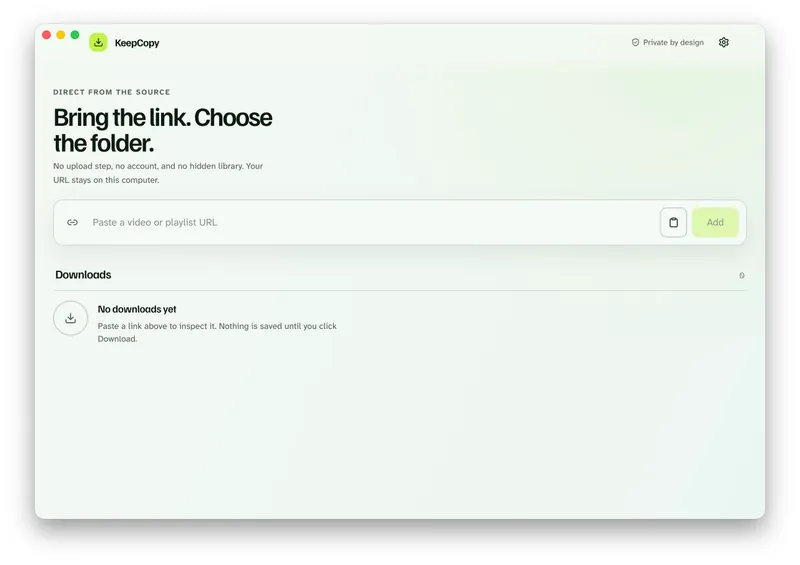
Copy the YouTube address and paste it into KeepCopy. Press Add. The app inspects the link on this computer. The quality line can read Chapters when the host sent them.
If the title is sign in required or YouTube is asking for verification, open Site access under the paste field, choose cookies from a listed browser or a cookies.txt file, and press Add again. Cookies stay on this computer. The full path is Video download says sign in required.
Step 3: Open More options and pick This part
Choose Lecture when you also want 1080p with captions, or Watch later for everyday 1080p. Then open More options.
Under This part, tick the chapters you want, or set Start and Stop. The chapter toolbar shows how many are selected and a duration when the host sent end times. Chapter picks and a typed range are one mode — not both at once.
Screenshot of chapter-picker
This is not a format-code screen. You never type --download-sections. The engine still does the cut. That is why ffmpeg is on first launch.
Step 4: Confirm the folder, then start the queue
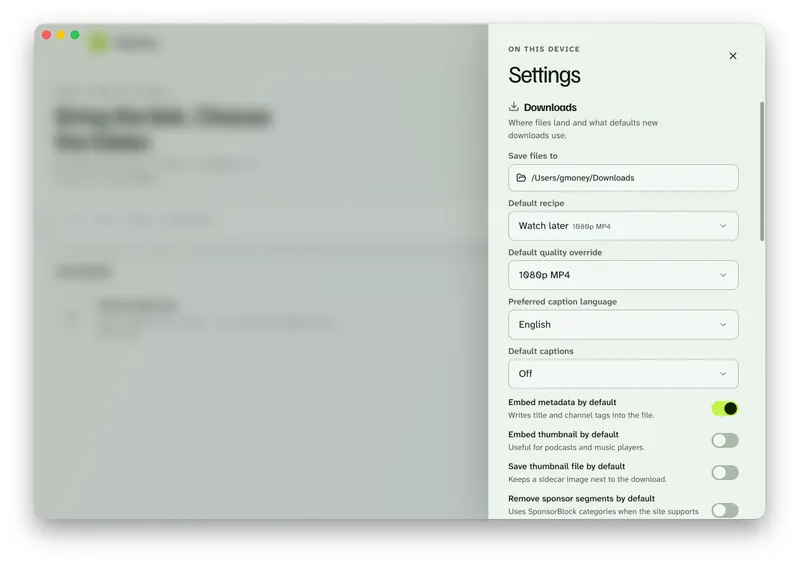
In Settings, set Save files to to a folder on this computer, then click Download. Progress, cancel, retry, and Show folder live in the queue.
When the job finishes, that part is a normal video on disk — offline local media, not a library inside the app.
KeepCopy
No telemetry. No account. The video stays on this computer. 🎉 50% off launch sale!
Start and Stop
YouTube share almost never includes a stop — only t= or #t=. That is why This part has clock fields, not a toggle that hopes the URL already had an end.
Type seconds, 1:30, or 12m. Empty Stop means from Start to the end of the file. Empty both keeps the whole talk. Official yt-dlp cuts a *START-END range with --download-sections. That is an engine fact. You type the clocks.
This is not a frame-accurate editor. There are no sliders. A two-hour lecture is a bad slider.
A link that already starts at a time
Some watch links already carry a start. Inspect can see t=, start, or #t=, and end when a host sent one.
If it does, This part says so and offers Use times from this link. That fills Start and Stop. It does not apply those times on its own — a share link often starts where you paused, and you may still want the whole file. Clear the fields to go back.
A friend sent ?t=12m and you only wanted from there: paste that URL, inspect, press Use times from this link. Set Stop if you also know where it should end.
Screenshot of start-stop-fields
Chapter picks and a typed range are one mode. You keep host chapters, or you keep Start and Stop — not both at once.
Cleaner cuts
Default cuts sit on keyframes. The start or end can be a few seconds off. Official yt-dlp FAQ says the same thing: video cannot cut at an exact timestamp without a re-encode.
When any section is on, Cleaner cuts (slower) appears. That is --force-keyframes-at-cuts in the engine. ffmpeg re-encodes the selected part. It is slower. Use it when a few seconds matters. Leave it off when a lecture section that starts a breath early is fine.
This is not frame-accurate editing. If you need a frame, save the whole video and cut it in an editor you already have.
What this will not do
KeepCopy will not invent chapters, restore a deleted VOD, or act as a frame-accurate editor.
- No start/end sliders.
- No silent split of every chapter unless you selected them.
- No live recording. A live or upcoming inspect warning means wait for the replay — Download YouTube live stream.
- No Stories.
The whole-video YouTube job is still YouTube to MP4. This page stays the named part.
If you wanted the whole talk
Leave This part on the whole video. Pick Lecture when you want 1080p plus captions. That walkthrough is Download lecture with captions. Words-only is Download video captions as SRT.
A public watch link without chapters is the ordinary paste-pick-save path. You do not need this page for that.
The download stays local-first. For the path of a pasted link, read What stays on your computer. If the queue failed, Video download keeps failing. Prefer buttons to a terminal? yt-dlp without the terminal. More workflow notes live with this one.
Micro-FAQ
Which URL do I paste?
Paste the YouTube watch page, a youtu.be short link, or a Shorts URL that already has chapters. Not a playlist page, and not a Twitch clip URL.
Will KeepCopy invent chapters?
No. Inspect only lists chapters the host already published. If the preview does not say Chapters, there is nothing to pick.
Does this split every chapter automatically?
No. You pick the chapters you want. Select all if you mean every section. The app does not silent-split a talk into files you did not check.
Why is the cut a few seconds off?
Default cuts sit on keyframes. Turn on Cleaner cuts (slower) if you want ffmpeg to re-encode closer to the chapter time. Official yt-dlp documents that tradeoff.
Can I type my own start and end?
Yes. This part has Start and Stop. Empty both keeps the whole video. This is not a frame-accurate editor.
KeepCopy
Local-first desktop app
KeepCopy is a desktop video downloader. Paste a link, pick quality, and save the video to a folder on this computer. 🎉 50% off launch sale!