Video download says sign in required? Use browser cookies
Video download says sign in required? Use browser cookies or cookies.txt locally when a host challenges a download you can already access.
The video plays while you are signed in, but inspect or download says sign in required. A public request and your browser session do not look the same to the host, so retrying the same anonymous request may lead to the same challenge.
Copying cookie flags into a terminal adds another place to expose or misplace session data. KeepCopy handles this locally: open Site access under the paste field, choose cookies from a listed browser or a cookies.txt file, then press Add. The cookies stay on this computer and go only to yt-dlp for that challenged link.
On this page
- Why a video download says sign in required
- Before you use browser cookies
- How to use browser cookies for the download
- Browser cookies or cookies.txt
- Where the cookies go
- What browser cookies cannot do
- If browser access fails
- Micro-FAQ
Why a video download says sign in required
The host may be asking for the signed-in context your browser already has. The link can work in a browser tab while a separate download request is challenged.
Your browser keeps that context in cookies. When you visit the page while signed in, the host can connect the request to that session. A local downloader starts without that browser context unless you choose to provide it.
KeepCopy exposes that choice under Site access, below the paste field — before inspect has to succeed. You can select a listed browser or point the app at a cookies.txt file. Choosing a source does not inspect the link. Press Add when you are ready. yt-dlp then uses that local context instead of asking you to type a cookie flag.
This is not required for an ordinary public video. Start with Don’t use cookies. Add browser context only when the host challenges inspect or download, or requires access you already have.
A subscriber-only Twitch past broadcast is Download a Twitch VOD. A challenged Twitch highlight is Download a Twitch clip. A challenged YouTube watch link is YouTube to MP4 or YouTube to MP3. A members-only live replay is Download YouTube live stream. YouTube Watch Later is a private list — Download YouTube Watch Later. A generated Mix is usually public — Download YouTube Mix. A friends-only Facebook Watch or Reel is Facebook to MP4. A challenged Instagram Reel or video post is Instagram to MP4. A challenged TikTok video is TikTok to MP4. A protected X /status/ post is How to download an X video as MP4. A challenged Vimeo link is Download a Vimeo video.
Before you use browser cookies
Confirm that the same video opens in the browser session you plan to use. Cookies can carry existing access; they cannot create access.
Use this short check:
- Open the exact video page in your browser.
- Confirm that you are signed in to the host there.
- Confirm that the video plays for that account.
- Return to KeepCopy and use that browser as the cookie source.
If you cannot view the video in the browser, the cookie path is not a workaround for the host’s rules. KeepCopy does not proxy a login, request a password, or create another account for you.
The video still needs to be available through a source yt-dlp can inspect. A signed-in session does not turn every page into a supported video page.
How to use browser cookies for the download
Paste the link, open Site access, press Add, then download. The workflow stays inside the desktop app on macOS or Windows. Linux is coming soon.
Step 1: Paste the video link
Open KeepCopy and paste the exact video page URL. Use the video page, not the host’s homepage.
If you already know the host needs a signed-in session, open Site access before you press Add. If Add already failed with a sign-in or private title, open Site access and press Add again.
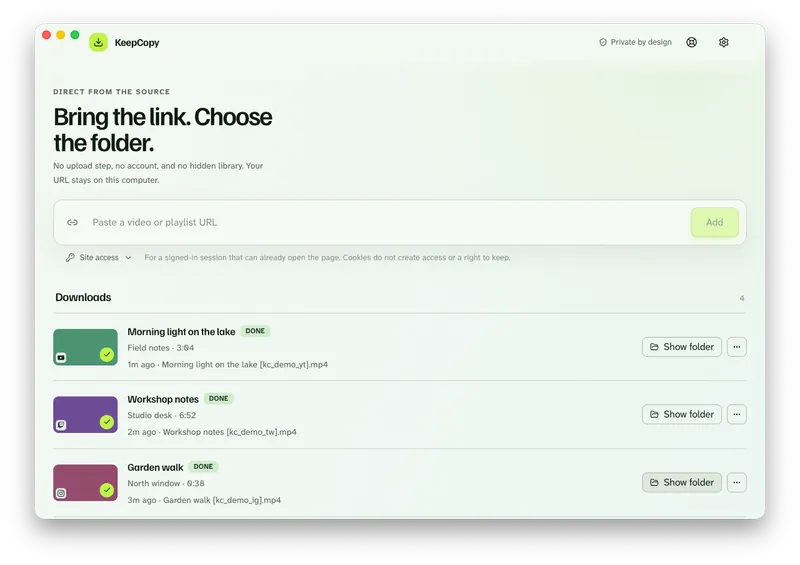
Step 2: Open Site access under the paste field
Site access sits under the URL field, before a preview has to load. The app explains the boundary there: cookies stay on this computer and go only to yt-dlp when the site challenges this link.
Selecting a browser or a cookies.txt file does not inspect the link and does not read the browser until you press Add. On a Mac that is when Keychain may appear. On Windows there is no Allow prompt.
The default is Don’t use cookies. Leave that selected for public videos that work without a signed-in session. After you pick a browser or a cookies.txt file, KeepCopy remembers that Site access choice for the next paste. You can set the same default in Settings. Choose Don’t use cookies again when you want the next link anonymous.
Screenshot of site-access-before-inspect
Step 3: Choose the browser where you are signed in
Open Cookie source and select the browser that holds the working session. KeepCopy lists Chrome, Chromium, Brave, Edge, Firefox, and Safari.
Choose the browser you actually used for the check above. Selecting a different browser does not provide the session from the signed-in one.
Screenshot of browser-cookies-source-list
Step 4: Press Add
Press Add so the app can inspect the source with that local session. You should see the title and the options that apply.
After preview, More options still has the same Site access controls if you need to change them before you queue the job.
Step 5: Choose quality and download
Pick quality in ordinary language: 720p MP4, 1080p MP4, 4K MP4, best available, audio M4A, audio MP3, or Captions (SRT), depending on what the source offers.
The folder is Save files to in Settings. Nothing is uploaded to KeepCopy.
Click Download. The queue shows progress and lets you cancel or retry. When the job finishes, use reveal in folder to open the location you selected.
KeepCopy
No telemetry. No account. The video stays on this computer.
More local download how-tos are collected under Workflow guides.
Browser cookies or cookies.txt
KeepCopy provides two local cookie paths. Start with the browser list when the signed-in profile is available to the app. Use Choose cookies.txt when you already have that file or browser access fails.
The choices appear together under Site access:
- Browser cookies: choose Chrome, Chromium, Brave, Edge, Firefox, or Safari.
- Don’t use cookies: keep inspect and download anonymous when the host does not require a session.
- Choose cookies.txt: point KeepCopy at a cookie file on this computer.
The app also shows a platform-specific note on Site access and in Settings. On macOS, Keychain access is for that browser profile, not one download. Choose Always Allow so inspect and later downloads do not ask again. Allow only covers that one read. A cookies.txt file skips Keychain. On Windows, Chrome, Brave, or Edge may refuse to share cookies with other apps. That is the same whole-profile read, not one link. There is no Allow button. If inspect or download fails after you pick that browser, use cookies.txt. Cookies stay on this computer.
KeepCopy does not include a browser extension and does not send cookies to a cloud service. Both paths supply local session context to the local yt-dlp engine.
Where the cookies go
Cookies stay on this computer and go only to yt-dlp for the challenged link. KeepCopy does not forward them through our servers or this marketing website.
The video URL follows the same local-first model. It goes from your computer to the chosen video host, never through our servers. The host responds to the app running here, and the video lands in the folder you chose.
The desktop app sends no telemetry and no crash reports. It does not create a KeepCopy account. The running app never contacts this marketing site.
Optional checks can look for a newer official yt-dlp release on GitHub. You can turn those checks off, and they never include the video URLs you paste.
For the exact difference between the desktop app and this website, read What stays on your computer and Privacy.
What browser cookies cannot do
Browser cookies reuse access; they do not grant it. The option is for a host challenge involving a session you already control.
It does not:
- Sign in to the host for you.
- Ask for or store your host password.
- Give an account access it does not have.
- Promise that every host or video will work.
- Bypass the host’s access rules.
- Turn KeepCopy into a cloud login proxy.
The app also is not a media library or player. When the download succeeds, the result is a normal video in a folder on this computer.
If browser access fails
Use the fallback presented in Site access: cookies.txt. Browser and operating-system protections can prevent another local app from reading a browser profile even when you selected the correct browser.
Select Choose cookies.txt, pick the file already stored on this computer, and press Add again. KeepCopy passes that file to yt-dlp locally.
If the host still refuses the request, do not assume more retries will create access. Confirm the session can play the video in the browser and that the source is supported. KeepCopy cannot override a host decision.
For the full no-terminal setup—including how KeepCopy installs and verifies yt-dlp plus ffmpeg—read yt-dlp without the terminal.
Micro-FAQ
Why does a video download say sign in required?
A host may challenge inspect or download when the request does not carry the signed-in context from your browser. KeepCopy can give yt-dlp local access to browser cookies or a cookies.txt file.
Which browsers can KeepCopy use for cookies?
The browser list in KeepCopy includes Chrome, Chromium, Brave, Edge, Firefox, and Safari.
Do browser cookies leave this computer?
No. Cookies stay on this computer and go only to yt-dlp when the host challenges that link. KeepCopy does not proxy your login through its servers.
Can cookies download a video I cannot access?
No. Cookies reuse a browser session you already have. They do not grant permission or bypass a host’s access rules.
KeepCopy
Local-first desktop app
KeepCopy is a desktop video downloader. Paste a link, pick quality, and save the video to a folder on this computer.