Facebook to MP4
Facebook to MP4: paste a Watch, Reel, or fb.watch link, pick 1080p or 4K MP4, and save the video to a folder on this computer.
You searched facebook to mp4 — or a facebook video downloader. The usual result is a converter you found in search: paste the link, wait on a second page, and still may not know who saw the URL.
KeepCopy is a desktop video downloader, not a website that fetches the video for you. To do Facebook to MP4 here, paste a Watch, Reel, share, or fb.watch link, pick 1080p MP4 or 4K MP4, and save the video to a folder on this computer. Official yt-dlp plus ffmpeg run locally. The pasted URL never goes through our servers. The desktop app sends no telemetry.
On this page
- Why Facebook-to-MP4 usually means a converter
- Paste Watch, Reel, share, or fb.watch
- Friends-only videos and cookies
- How to do Facebook to MP4 in KeepCopy
- What this will not do
- If you wanted audio only
- Micro-FAQ
Why Facebook-to-MP4 usually means a converter
Facebook does not give you a download button on someone else’s video. The search fills with paste boxes. Those pages take the link through someone else’s server. A browser extension is the other common path.
KeepCopy stays a desktop video downloader. This page is only the Facebook-as-MP4 job. Your computer talks to Facebook. We do not see the URL. There is no account with us and no crash reporting.
That is the point of a local save: the file lands in a folder you choose, as offline local media, not in a tab you have to trust.
The generic “no converter in the middle” write-up is Save web video without a web converter. A YouTube watch link is YouTube to MP4. An Instagram Reel or video post is Instagram to MP4. A TikTok video or share link is TikTok to MP4. An X /status/ post is How to download an X video as MP4. Come back here when the link is Facebook.
Paste Watch, Reel, share, or fb.watch
Paste the video page you opened, not the Feed.
- A Watch URL looks like
facebook.com/watch/?v=plus an id. - A Reel looks like
facebook.com/reel/plus an id. - A share link looks like
facebook.com/share/v/orfacebook.com/share/r/. - A page video looks like
facebook.com/plus the page, then/videos/and an id. - A short link looks like
fb.watch/plus a slug.
Copy from Share or the ⋯ menu on that video. Mobile m.facebook.com links to the same video are fine. Do not paste the Feed, a profile home, or a search page. Those are not one video. The app will say so.
A list of videos is still select-then-save — Download selected videos from a playlist.
Friends-only videos and cookies
A public Watch or Reel usually downloads without cookies. Start with Don’t use cookies.
Friends-only, group, and some page videos can play in a signed-in browser and still challenge the download. If the title is sign in required, open Site access. Choose cookies from Chrome, Chromium, Brave, Edge, Firefox, or Safari, or a cookies.txt file. Then retry.
Cookies stay on this computer. They go only to yt-dlp for that challenged download. They reuse a session you already have. They do not create an account with us and they do not unlock a video Facebook will not serve you.
The full cookie path is Video download says sign in required.
How to do Facebook to MP4 in KeepCopy
Paste the Facebook link, pick an MP4 preset, set the folder, and queue the job. You never type a format code.
Step 1: Open KeepCopy
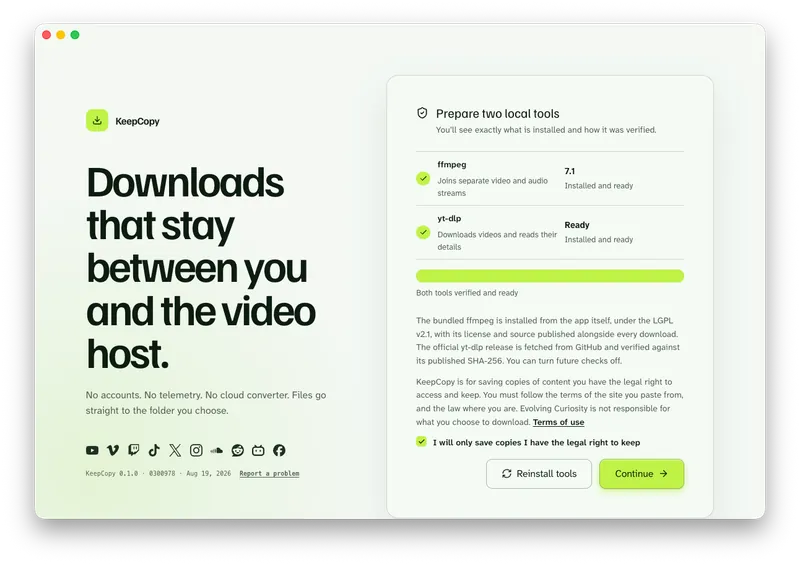
Launch KeepCopy on macOS or Windows. Linux is coming soon. First run installs and verifies the official yt-dlp release and ffmpeg on this computer. You do not hunt a package manager.
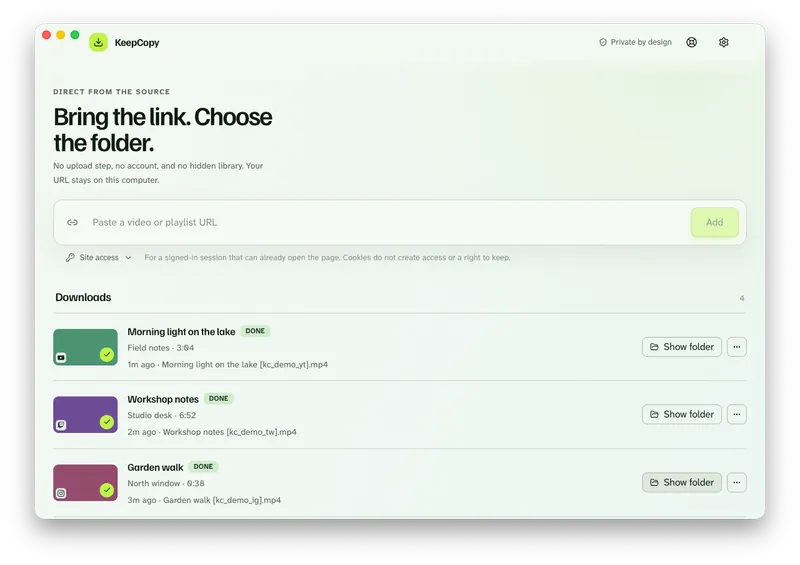
Step 2: Paste the Facebook URL
Drop in the Watch, Reel, share, or fb.watch link. The app inspects it on this computer before anything is saved. You should see that video’s title.
Step 3: Pick 720p, 1080p, or 4K MP4
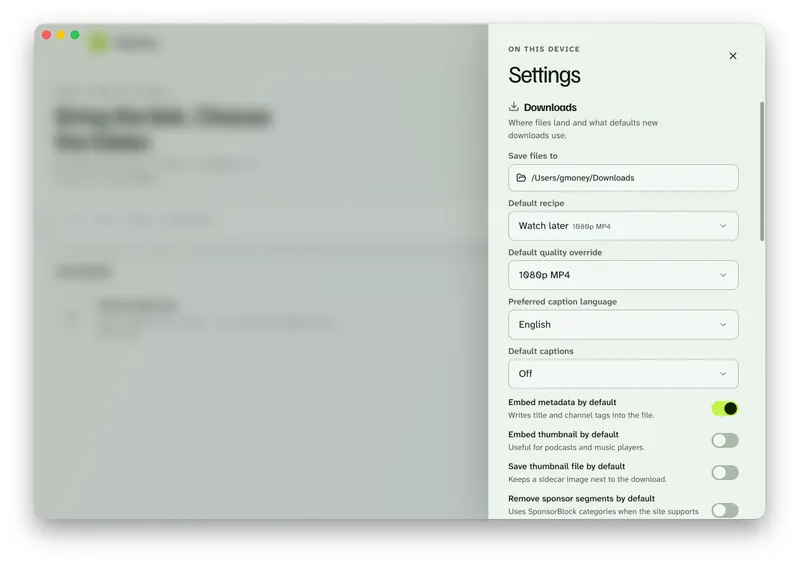
Choose 720p MP4, 1080p MP4, 4K MP4, or best available when the source has them. Prefer 1080p or 4K when you want one file with sound. Hosts often split picture and audio; ffmpeg joins them here.
Watch later is a shortcut for those everyday presets — Download 1080p video without command line.
Step 4: Save it to a folder
In Settings, set Save files to to a folder on this computer. The queue shows progress, cancel, and retry. When it finishes, Show folder reveals the video.
KeepCopy
No telemetry. No account. The video stays on this computer.
What this will not do
KeepCopy cannot restore a video Facebook already took down. If the page is gone, inspect has nothing to load.
It will not download Stories. This page is a Watch, Reel, or page video you can open as a link.
It will not unmute audio Facebook already muted. If the host silenced the clip, the saved file keeps that mute.
This is not a Facebook browser, a messenger export, or a website that fetches the video for you.
If the picture is mute because streams were not joined, see Downloaded MP4 no audio.
If you wanted audio only
MP4 presets keep the picture. If you wanted the soundtrack, open Audio and pick audio MP3 — same local path, no converter in the middle. The generic audio how-to is Download video as MP3 on the desktop.
The download stays local-first. For the path of a pasted link, read What stays on your computer. If the queue failed, Video download keeps failing. More workflow notes live with this one.
Micro-FAQ
Which Facebook URL do I paste?
Paste the Watch page, a Reel, a share/v or share/r link, a page videos URL, or fb.watch. Not the Feed, a profile home, or a search page.
Can I save a video only my friends can see?
If the download says sign in required, choose cookies from a listed browser or a cookies.txt file. Cookies stay on this computer. They reuse a session you already have. They do not unlock a video Facebook will not serve you.
Is KeepCopy a website that converts the video?
No. It is a desktop video downloader. A pasted Facebook URL goes from this computer to Facebook — never through our servers.
Does this download Facebook Stories?
This page is Watch, Reels, and page videos you can open as a link. Stories are not a shipped control here.
KeepCopy
Local-first desktop app
KeepCopy is a desktop video downloader. Paste a link, pick quality, and save the video to a folder on this computer.