Downloaded video has auto-dubbed audio
Downloaded video has auto dubbed audio? Pick Audio language — original or a listed track — and save the video to a folder on this computer.
You pasted a link. The picture is right. The voice is the wrong language.
A converter you found in search, or a browser extension, often grabs whatever soundtrack the host marks as default. That default is frequently an auto-dub, not the voice the creator recorded. You wanted a video in a folder. You got a translation you did not ask for.
KeepCopy is the local desktop video downloader for that job. When a downloaded video has auto dubbed audio, inspect the link, open Audio language, and pick the row marked (original) — or the listed track you actually want. Then save the video to a folder on this computer.
No format code. No copied command. The control appears only when the source has more than one track.
On this page
- Why the file is dubbed
- How to choose audio language when downloading
- What (original) and (auto-dub) mean
- When Audio language does not appear
- One track, not every language
- Not mute, and not audio-only
- Where the video lands
- Micro-FAQ
Why the file is dubbed
The host offered more than one soundtrack. The download kept the default.
On the watch page, you can often switch audio tracks. A file on disk cannot. Whatever track was saved is the voice you hear. Hosts now ship an original track and one or more auto-dubs. A default download can pick the dub that matches a region or account language.
That is a video download wrong audio language problem, not a broken speaker. The picture is fine. The words are not the ones you wanted.
A copied command that never names a language does the same thing: it takes “best audio” and hopes. Default in KeepCopy is that same hope. When inspect finds more than one track, you choose.
This is not KeepCopy inventing a voice. The app does not generate dubs. It lists what the source already has.
How to choose audio language when downloading
Paste, inspect, pick Audio language, then download. The list is on screen before anything is saved.
Step 1: Open KeepCopy
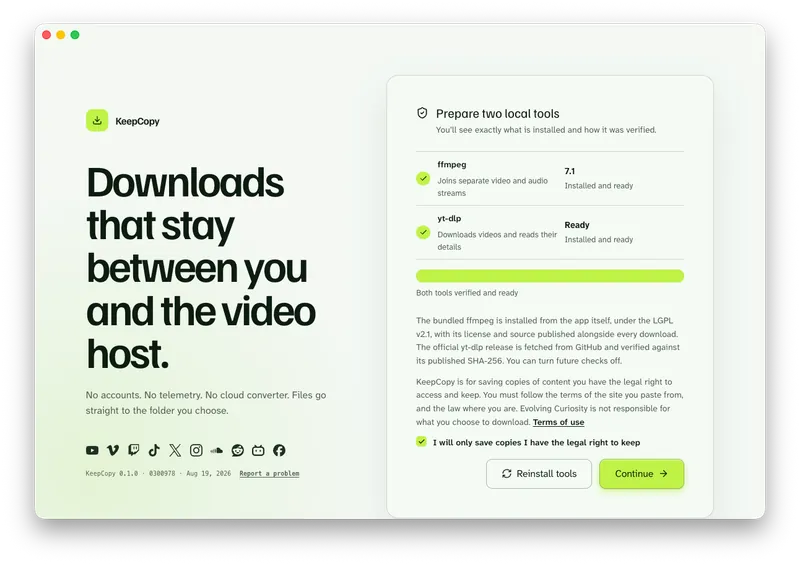
Launch KeepCopy on macOS or Windows. Linux is coming soon. On first launch, the app installs and verifies the official yt-dlp release and a bundled ffmpeg on this computer.
You do not hunt a package manager. The engine is part of first run.
Step 2: Paste and inspect the video link
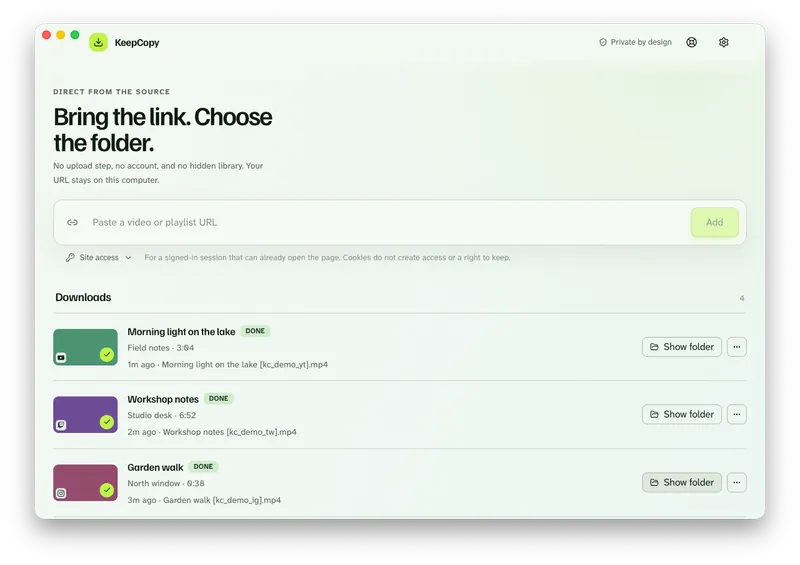
Copy the video URL and paste it. Press Add so the app can inspect the source.
You need the video page, not a homepage. Inspect is what reveals whether Audio language applies.
If you pasted a playlist, select the entries you want. The app does not silently grab every item. Language choice is for a single video you inspect — see Download selected videos from a playlist for the list job.
Step 3: Open Audio language
When the source has more than one track, Audio language appears next to Download as. It also lives under More options.
The list starts with Default, then each language the inspect found. Originals are marked (original). Auto-dubs are marked (auto-dub).
Pick the original when you want the recorded voice. Pick a listed language when you want that dub on purpose.
Step 4: Save to a folder
Choose quality in plain language if you have not already — 720p MP4, 1080p MP4, 4K MP4, or best available. Click Download.
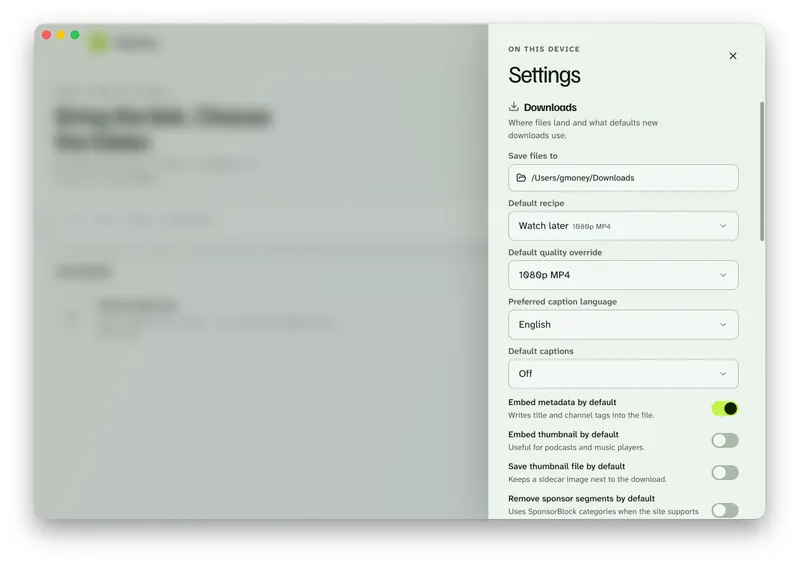
The queue writes to the folder set in Settings under Save files to. When the job finishes, Show folder and play the new file. You should hear the track you picked.
KeepCopy
No telemetry. No account. The video stays on this computer.
What (original) and (auto-dub) mean
Those labels come from the source. KeepCopy does not write them.
(original) is the soundtrack the creator uploaded. That is the usual fix when a downloaded video has auto dubbed audio.
(auto-dub) is a translated track the host already offers. Choose it only when you want that language.
Default leaves the choice to the engine’s usual “best audio” path. Use it when you do not care, or when you have not looked at the list yet. If the last file came out dubbed, do not leave Default on.
You choose audio language when downloading video from that list. You do not type a language code, and you do not pass a format string.
When Audio language does not appear
The control is hidden until inspect finds more than one track.
A video with one soundtrack has nothing to pick. The download uses that track. If the voice is still wrong, the source only had that voice — KeepCopy cannot add a language that is not there.
Playlists hide Audio language. Inspect one video URL when the language matters. Then select playlist entries as their own job.
If inspect failed because the host challenged a signed-in video, cookies from a listed browser — Chrome, Chromium, Brave, Edge, Firefox, or Safari — or a cookies.txt file stay on this computer. Follow Video download says sign in required. A public link usually does not need it.
One track, not every language
Each download keeps one audio track. That is the honest control.
KeepCopy does not mux every dub into one file. It does not build a language menu inside the video. Pick (original) or one listed language, queue that job, and you get that soundtrack.
If you need a second language later, paste the same link and pick the other row. Two jobs, two files, in the folder you chose.
That is not batch transcode. It is the same paste-inspect-save path twice.
Not mute, and not audio-only
A dubbed file still has sound. A mute file is a different split.
If the picture moves and there is no audio, the host sent video and sound as separate streams and they were not joined. That diagnostic is Downloaded MP4 no audio. Picking Audio language will not invent a soundtrack that was never saved.
Audio-only labels — Audio only (MP3) and Audio only (M4A) — are the Audio job: the soundtrack without the picture. Full steps in Download video as MP3 on the desktop. They will not fix a dubbed video you meant to watch. This page stays on the picture plus the right voice.
Everyday quality still uses the same presets. For 1080p without a format code, see Download 1080p video without command line.
Where the video lands
You choose the folder in Settings. The app writes there.
There is no KeepCopy account and no temporary cloud workspace. The queue shows progress, cancel, retry, reveal in folder, and remove.
When the job completes, you have a normal video on disk — offline local media, not a library inside the app. Play it in whatever player you already use.
KeepCopy is local-first. A pasted URL goes from this computer to the video host — never through our servers. The desktop app sends no telemetry and does not create an account.
For the path of a pasted link, read What stays on your computer. The broader paste-pick-save walkthrough is yt-dlp without the terminal. More notes live under Workflow guides.
Micro-FAQ
Why does a downloaded video have auto-dubbed audio?
The host offered more than one soundtrack. Default saved the auto-dub instead of the original. In KeepCopy, pick Audio language after inspect.
How do I choose the original audio?
Paste the link, wait for inspect, then open Audio language. Pick the row marked (original), or the language you want, and download again.
Why don’t I see Audio language?
The control appears only when that video has more than one track. A single-track source has nothing to pick. Playlists hide it — inspect one video at a time.
Can I save every language in one file?
No. KeepCopy saves one audio track per download. Pick the original or a listed language, not every dub at once.
KeepCopy
Local-first desktop app
KeepCopy is a desktop video downloader. Paste a link, pick quality, and save the video to a folder on this computer.