Downloaded MP4 no audio
Downloaded MP4 no audio because the host split video and sound. Pick 1080p or 4K so ffmpeg joins them into one file on this computer.
You pressed play on a downloaded MP4. The picture moves. There is no audio.
That is not a broken speaker. Hosts often send video and sound as two streams. A copied command that never runs ffmpeg saves the picture and leaves the soundtrack behind — or it falls back to a 360p file that already had both mashed together.
KeepCopy is the local desktop video downloader that runs official yt-dlp plus ffmpeg on this computer. You paste a link, pick 1080p or 4K in plain language, and get one video in a folder. This page is for a downloaded MP4 with no audio, and for the download that looks stuck at 360p.
On this page
- Why the file is mute
- Why the download is only 360p
- What ffmpeg is for
- Get one file without the command line
- First launch installs ffmpeg
- Pick 1080p or 4K in plain language
- A mute file you already have
- What this is not
- Micro-FAQ
Why the file is mute
A downloaded MP4 with no audio usually means the video stream was saved and the audio stream was not joined to it.
When you watch in a browser, the page mixes picture and sound for you. A file on disk is different. Many hosts ship video and audio separately. Something on your machine has to combine them into one MP4. That job is ffmpeg.
A copied command from a README often skips that step. You get a file that looks finished. It is video-only. No player can invent a soundtrack that was never written.
The file can also be incomplete if the job stopped early. Check the queue finished. Then treat a silent MP4 as a streams problem, not a volume knob.
This is the everyday trap on YouTube and other hosts in the app: the page sounded fine, the saved file does not.
A YouTube watch or Shorts link as one MP4 is YouTube to MP4. A Facebook Watch or Reel as one MP4 is Facebook to MP4. An Instagram Reel or video post as one MP4 is Instagram to MP4. A TikTok video as one MP4 is TikTok to MP4. An X /status/ clip as one MP4 is How to download an X video as MP4. A Reddit post with that split is Download Reddit video with sound.
Why the download is only 360p
Low quality and no audio are the same split, seen from the other side.
Hosts often keep a small file that already contains picture and sound together — commonly around 360p. Sharper options (1080p, 4K) arrive as separate streams. Without ffmpeg, the safe fallback is that small muxed file. With ffmpeg, those streams become one watchable MP4.
So the download is not “stuck.” It is the version that did not need a join. You wanted 1080p for later and got the only file that already had a soundtrack baked in.
KeepCopy does not ask you to pick stream pairs. You pick a label the UI already shows. ffmpeg joins what that label needs.
What ffmpeg is for
ffmpeg is the companion that turns two streams into one file. It runs on this computer, during the download. There is no merger screen and no extra export step.
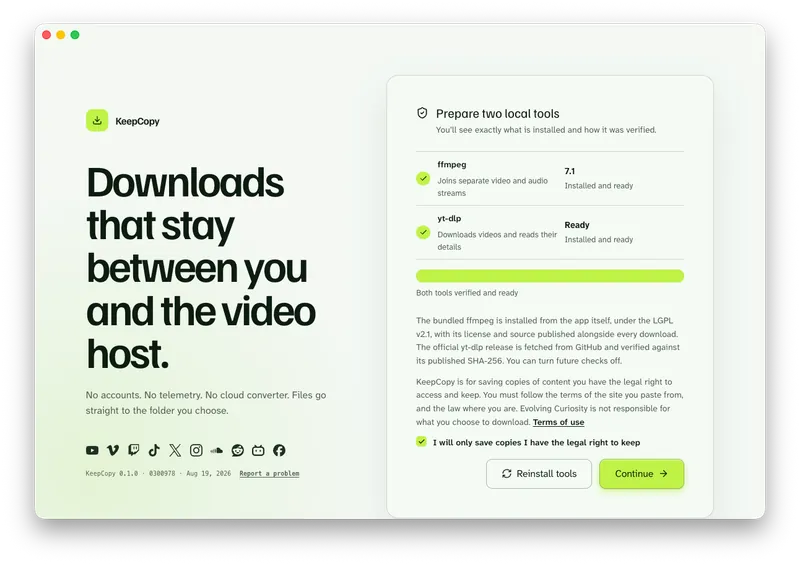
KeepCopy installs official yt-dlp and ffmpeg on first launch and checks them. You do not hunt a package manager, a PATH, or a copied command.
After that, optional checks can look for a newer official yt-dlp release. You can turn those checks off. They never include the URLs you paste.
The download still happens local-first: your computer talks to the video host. Nothing is uploaded to us. There is no cloud converter in the middle.
Get one file without the command line
You never type yt-dlp. You never pass a format code. You pick a quality in ordinary language and save to a folder.
Step 1: Open the app
Launch KeepCopy on macOS or Windows. Linux is coming soon. First run installs and verifies yt-dlp and ffmpeg on this computer.
Step 2: Paste the link
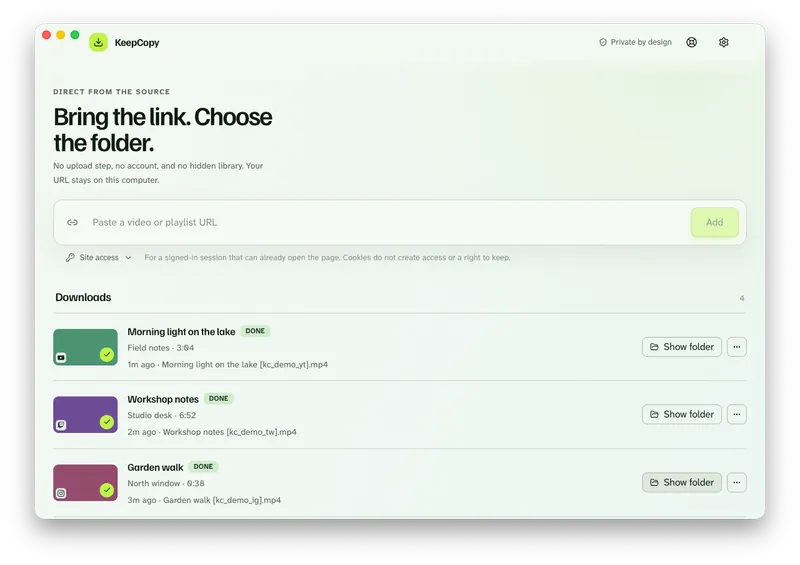
Drop in the same URL you already tried. The app inspects it on your machine before anything is saved.
Step 3: Pick a quality that needs both streams
Choose 1080p MP4, 4K MP4, or best available when the source has them. Those labels are how you get a watchable video instead of a mute one or a 360p fallback.
Watch later is a shortcut for the same everyday presets (720p / 1080p / 4K / best). You do not need a format code. The full everyday path is Download 1080p video without command line.
Step 4: Save it to a folder
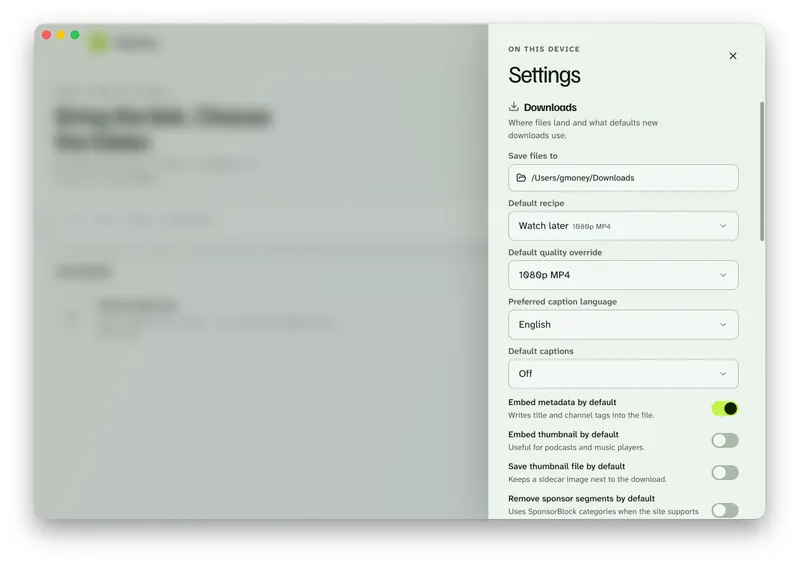
In Settings, set Save files to to a folder on this computer. The queue shows progress, cancel, and retry. When it finishes, Show folder reveals the file. Play it. You should hear the soundtrack.
KeepCopy
No telemetry. No account. The video stays on this computer.
If you want the full paste-pick-save walkthrough, see yt-dlp without the terminal. More workflow notes live with this one.
First launch installs ffmpeg
The mute file is usually a missing join, not a missing player. The join needs ffmpeg on this computer.
On first launch, KeepCopy places the official yt-dlp release and ffmpeg here and shows what was verified. That is the difference between a copied snippet and a desktop video downloader that already has the companion. If that machine is a Mac, see yt-dlp for Mac.
If something looks wrong later, Settings can repair or reinstall the tools. The next download still writes to the folder you choose.
You do not install that stack yourself. You confirm it, then you paste a link.
Pick 1080p or 4K in plain language
Format codes are how the command line names streams. This app does not ask you to learn them.
The list is ordinary language: 720p MP4, 1080p MP4, 4K MP4, best available, audio M4A, audio MP3, or Captions (SRT). It shrinks to what that source actually offers.
For a file you will watch later, pick 1080p MP4 or 4K MP4 when they appear. That is the quality layer: one MP4 with picture and sound, not a video-only stream and not the 360p muxed leftover.
Audio-only labels are a different job (the soundtrack, not the picture). They will not fix a mute video. Use them when you wanted MP3 or M4A on purpose — Download video as MP3 on the desktop.
If the source has more than one audio language, you can choose the track — see Downloaded video has auto-dubbed audio when the file plays but the voice is the wrong language. Captions are extra. They are not required to get sound.
A mute file you already have
KeepCopy does not merge two files you already saved. ffmpeg joins streams as part of a new download.
Paste the link again. Pick 1080p MP4 or 4K MP4. Save to a folder. The new file should have the soundtrack.
Do not run the silent MP4 through a cloud converter. That adds a hop you did not ask for, and it is not how this app works. The file should land offline local media in a folder on this computer.
If the queue failed, retry from the queue or repair the tools in Settings, then download again — Video download keeps failing.
What this is not
It is not a website that fetches the video for you. It is not a player, a library, or a batch transcode tool.
It will not strip audio from a file you already have. It will not promise hardware acceleration. It will not silently download every item in a playlist — you select entries first.
The running desktop app sends no telemetry and no crash reports. A pasted URL goes from your computer to the video host. The longer split between the app and this site is in What stays on your computer.
Gumroad, when it is listed, is the one purchase channel. Every downloadable app artifact publishes a SHA-256 checksum. Compare the installer you received to the published hash before you run it.
Micro-FAQ
Why does a downloaded MP4 have no audio?
Hosts often send video and audio as separate streams. If those streams are not joined, you get a picture with no soundtrack.
Why is the download only 360p?
The low-quality file is often the one that already includes sound. Sharper versions arrive as separate streams and need ffmpeg to become one MP4.
Do I need to install ffmpeg myself?
No. First launch of KeepCopy installs and verifies the official yt-dlp release and ffmpeg on this computer.
Can I merge a mute file I already saved?
KeepCopy has no merger screen. ffmpeg joins streams as part of a new download. Paste the link again and pick a plain-language quality so the file lands as one MP4.
KeepCopy
Local-first desktop app
KeepCopy is a desktop video downloader. Paste a link, pick quality, and save the video to a folder on this computer.