yt-dlp for Mac without the command line
Want yt-dlp for Mac without a terminal or a package manager? First launch installs and verifies the engine. Paste a link, pick quality, save locally.
You want yt-dlp for Mac, and every guide opens the same way: install a package manager, paste a command into a terminal window, then remember to install ffmpeg as well.
Then the copied command is stale, the tool is not on your PATH, or the video you finally save has no sound because ffmpeg never arrived. Twenty minutes gone, still no video in your folder.
KeepCopy is a local-first desktop video downloader that runs the official yt-dlp release plus ffmpeg on your Mac. First launch installs and verifies both. You paste a link, pick a quality in ordinary language, and save a video to a folder on this computer. The same app runs on Windows. Linux is coming soon.
On this page
- Why yt-dlp for Mac usually starts in a terminal
- What first launch does on your Mac
- Paste, pick, save
- Plain-language quality instead of format codes
- Where the video lands
- Playlists: select the entries you want
- Signed-in videos: cookies stay on this Mac
- What leaves your Mac
- Micro-FAQ
Why yt-dlp for Mac usually starts in a terminal
yt-dlp is a command-line program. That is the honest reason a search for yt-dlp on a Mac lands you in a terminal window with a package manager and two install commands.
You are not looking for a different engine. You want the one people trust, on your own machine, without the install ceremony in front of it. The missing piece on a Mac is a window that does the typing.
KeepCopy is that window. It runs the official yt-dlp release — not a rewrite, not a cloud service that fetches the video for you.
What first launch does on your Mac
The app installs the engine so you do not have to. On first launch it places the official yt-dlp release and a bundled ffmpeg on this computer and checks them, showing what was installed and how it was verified.
No package manager. No PATH to edit. No snippet from a README that expired last year. If you were stuck earlier on whether the engine needs an interpreter first, do you need Python for yt-dlp answers that for each official build.
ffmpeg matters more than it sounds. Hosts often send picture and sound as separate streams, and something local has to join them. If you have ever saved a file that played mute or arrived stuck at 360p, that was the missing join — see Downloaded MP4 no audio.
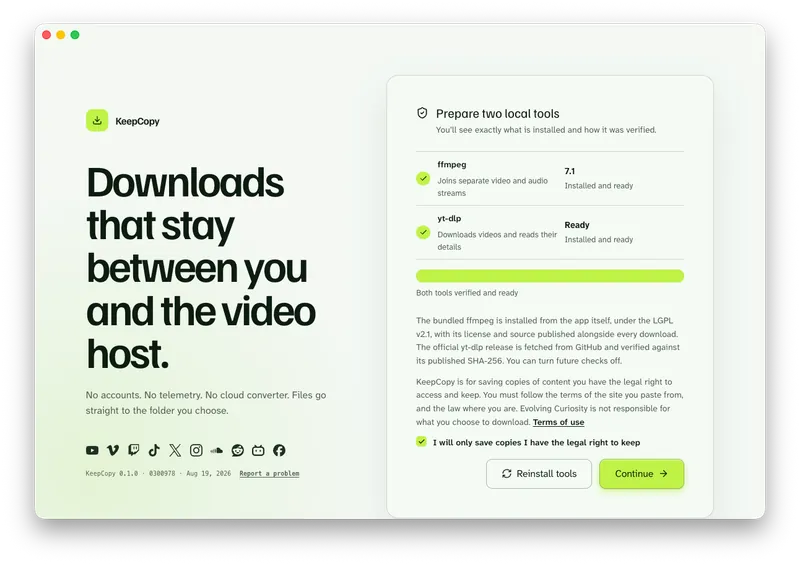
- Engine
- Official yt-dlp release, installed and verified on first launch.
- Companion
- Bundled ffmpeg, so separate video and audio streams become one file.
- Platforms
- macOS and Windows. Linux coming soon.
- Repair
- Settings can repair or reinstall the engine tools later.
Optional checks can look for a newer official yt-dlp release. You can turn them off, and they never include the URLs you paste.
Paste, pick, save
Four steps, and you never type yt-dlp. The flow is the same on macOS and Windows. Linux is coming soon.
Step 1: Open the app
Launch KeepCopy and let first run finish placing the engine tools on this computer. You confirm what is being installed instead of assembling it yourself.
Step 2: Paste the link
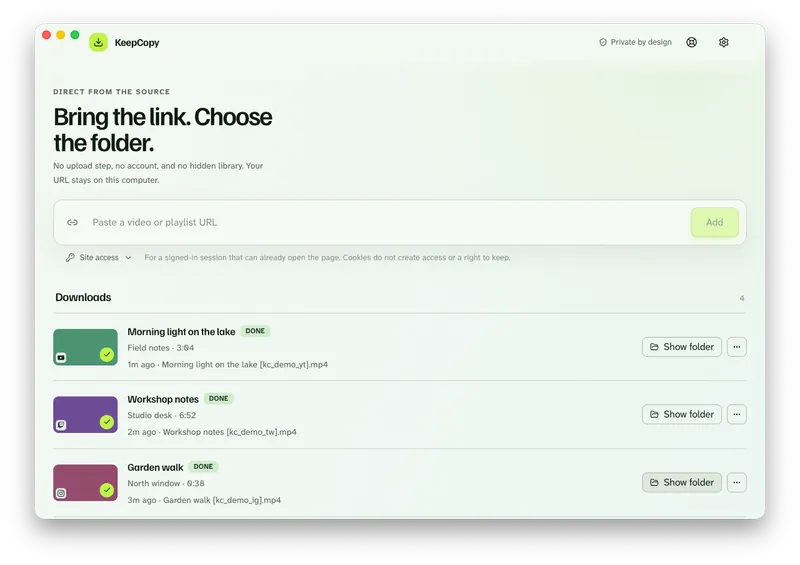
Drop in a video or playlist URL the way you would into a search bar. No flags, no quotes.
The app inspects the link on your machine before anything is saved, so you see the title and only the options that source actually offers.
Step 3: Pick a quality in plain language
Choose 720p MP4, 1080p MP4, 4K MP4, best available, audio M4A, audio MP3, or Captions (SRT). Recipes — Watch later, Best quality, Audio, Lecture, Archive, and Captions — are shortcuts for the same labels.
Step 4: Save it to a folder
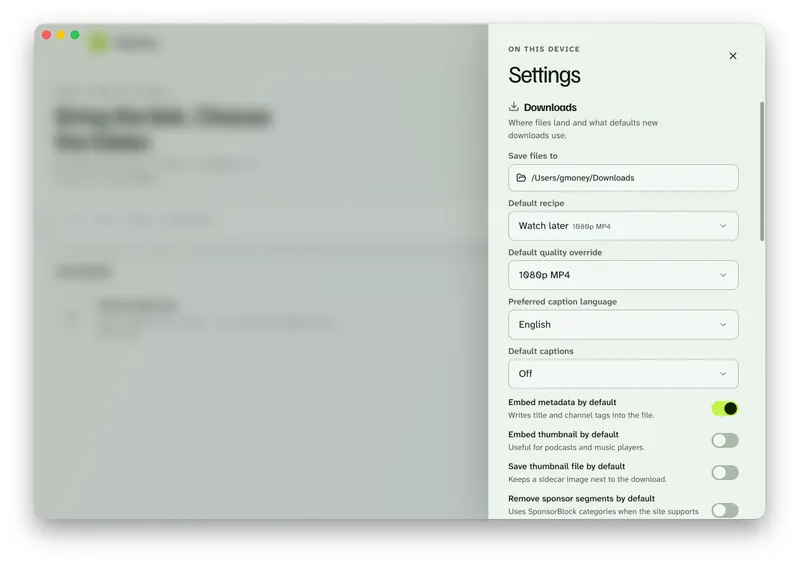
In Settings, set Save files to to a folder on your Mac. The queue shows progress, cancel, and retry. When it finishes, Show folder reveals the file.
KeepCopy
No telemetry. No account. The video stays on this computer.
The full walkthrough of this flow lives in yt-dlp without the terminal. More workflow notes sit with this one.
Plain-language quality instead of format codes
Format codes are the usual tax for driving the engine yourself. This app does not ask you to learn them.
You pick a label the UI already shows, and the list shrinks to what that source really has. For an everyday video to watch later, 1080p MP4 is the whole decision — see Download 1080p video without command line.
Extras are there when the job needs them: captions off, human-written, or auto with caption languages and an optional embed; the audio track when a source carries more than one language; embed metadata, embed thumbnail, or save a separate thumbnail file. Download lecture with captions covers the language pick. The Archive workflow combines those details. You can also remove sponsor segments without the command line when the source has markers.
None of those are required to finish a download.
Where the video lands
In the folder you chose, as a normal video. Not in a library inside the app, and not on a server you have to sign in to.
The queue is the working surface: progress, cancel, retry, reveal in folder, remove. Settings hold your download defaults, so you can set where files go once.
That is the product — a desktop video downloader that leaves you with offline local media. On a Mac that means the same thing as an offline video downloader: the file is in your folder, playable later, not a stream in a tab. It is not a player, an editor, or a website that fetches the video for you.
Playlists: select the entries you want
Paste a playlist URL and the app inspects it, then you select the entries you want and queue those.
It does not silently download every item in one run. Three videos out of forty means you pick those three. The full walkthrough is Download selected videos from a playlist.
Signed-in videos: cookies stay on this Mac
Some hosts will not serve a video the way a public link does. When you are signed in on this computer, the app can use cookies from a browser listed in the UI — Chrome, Chromium, Brave, Edge, Firefox, or Safari — or a cookies.txt file you point it at. Follow the full workflow when a video download says sign in required.
Those cookies stay on this computer. There is no login proxy and no account with us.
What leaves your Mac
No telemetry. No crash reporting. No accounts. A pasted URL goes from your Mac to the video host you chose, and never through our servers.
The only background network call is looking up a newer official yt-dlp release on GitHub, which you can switch off. Everything else happens because you asked for a download. The running app never contacts this marketing site.
Every downloadable app artifact publishes a SHA-256 checksum. Compare the file you received to the published hash before you run it.
The desktop app and this website follow different rules. Read What stays on your computer and Privacy.
Micro-FAQ
Do I need a terminal or a package manager to use yt-dlp on a Mac?
Not with KeepCopy. First launch installs and verifies the official yt-dlp release and ffmpeg on this computer, and you paste a link instead of typing a command.
Does it install ffmpeg on my Mac too?
Yes. A bundled ffmpeg is installed alongside the official yt-dlp release on first launch, so separate video and audio streams land as one file.
Where does the downloaded video go on my Mac?
In the folder you choose. The queue can reveal it there when the download finishes. Nothing is uploaded to us and there is no cloud converter in the middle.
Can I download a video I am signed in to on Safari?
You can use cookies from a browser listed in the app — Chrome, Chromium, Brave, Edge, Firefox, or Safari — or a cookies.txt file. Cookies stay on this computer.
Is this Mac only?
No. The same app runs on Windows. Linux is coming soon, and the steps on this page are the same.
KeepCopy
Local-first desktop app
KeepCopy is a desktop video downloader. Paste a link, pick quality, and save the video to a folder on this computer.